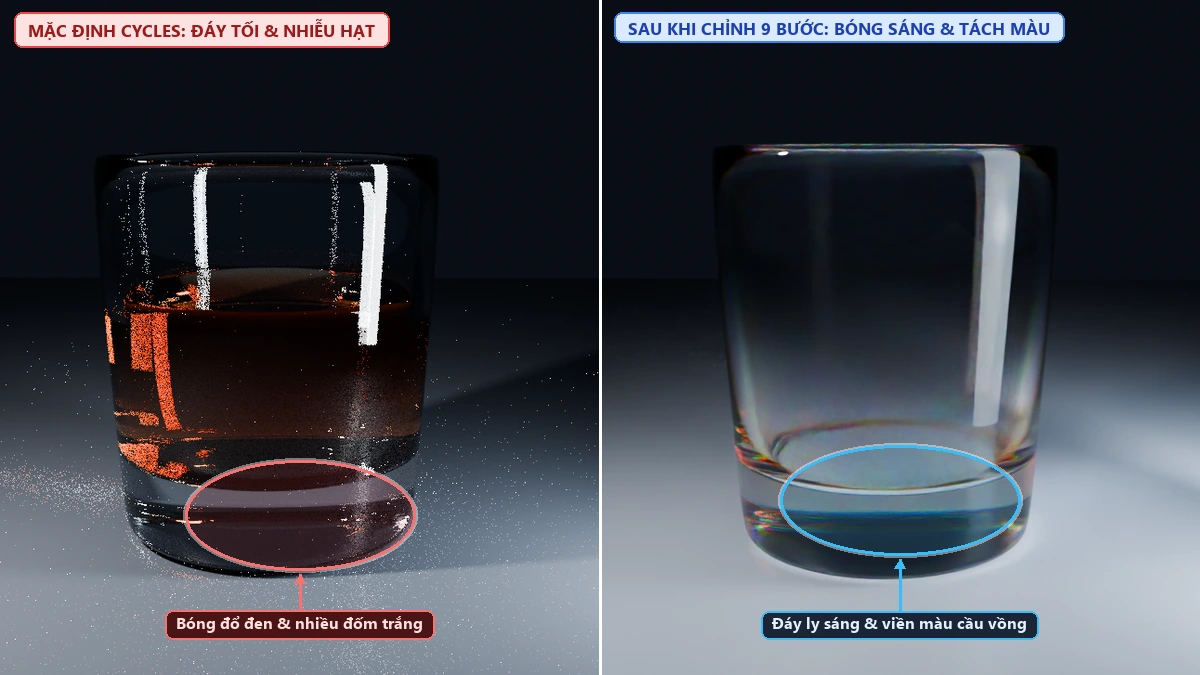
Trình render áp dụng: Blender Cycles (Blender 3.6, 4.x, 5.x)
Nội dung: 9 bước thiết lập Shader Editor, Render Properties, Object Visibility và mô hình 3D cho vật liệu thuỷ tinh
File thực hành đính kèm: blender_cycles_glass_demo.blend
Khi tạo node Glass BSDF mặc định trong Blender Cycles để render ly nước, chai lọ mỹ phẩm hoặc nước hoa, kết quả thường gặp 4 vấn đề:
- Vùng bóng đổ dưới đáy ly bị tối đen dù vật liệu trong suốt.
- Xuất hiện nhiều đốm sáng trắng li ti (Fireflies) trên thành và đáy ly.
- Khi đặt 2 chiếc ly cạnh nhau hoặc làm đáy ly dày, thân ly xuất hiện các mảng đen.
- Vệt đèn phản chiếu trên bề mặt kính bị gắt hoặc dính hình phản chiếu của các tấm hắt sáng phụ.
Bài viết này tổng hợp 9 bước thiết lập mình thường dùng trong các dự án render packshot sản phẩm, chia thành 3 phần để bạn dễ tra cứu và áp dụng.
Phần 1: Làm sáng bóng đổ dưới đáy ly & Giảm hạt trắng (Fireflies)
Mặc định, Blender Cycles chặn các tia tính bóng đổ (Shadow Ray) tại bề mặt vật liệu khúc xạ để giảm thời gian tính toán. Nếu bạn chỉ bật Reflective / Refractive Caustics, thời gian render sẽ tăng lên nhưng vùng bóng dưới đáy ly vẫn tối và xuất hiện nhiều hạt nhiễu.
Bước 1: Kết hợp Transparent BSDF và Is Shadow Ray
Để giữ nguyên độ khúc xạ trên thân ly nhưng cho phép ánh sáng đi xuyên qua đáy ly xuống mặt bàn:
- Trong Shader Editor, giữ node
Glass BSDF(hoặcPrincipled BSDFbật Transmission) và tạo thêm một nodeTransparent BSDF. - Nối cả hai node vào
Mix Shader(đặtGlass BSDFở cổng trên,Transparent BSDFở cổng dưới). - Bấm
Shift + A> Input >Light Path, nối cổngIs Shadow Rayvào cổngFactorcủaMix Shader.
Khi đó, camera nhìn trực tiếp vào ly vẫn thấy vật liệu thuỷ tinh, còn các tia tính bóng đổ trên mặt bàn sẽ đi qua node Transparent BSDF.

Bước 2: Tạo vùng sáng tập trung dưới đáy ly bằng Layer Weight
Nếu để màu của Transparent BSDF là màu trắng đồng nhất, toàn bộ bóng đổ dưới mặt bàn sẽ phẳng và thiếu độ đậm nhạt giữa tâm và viền ly.
- Bấm
Shift + Atạo nodeLayer Weightvà nodeColor Ramp. - Nối cổng
FacingcủaLayer WeightvàoColor Ramp, sau đó nối đầu raColorvào cổngColorcủaTransparent BSDF. - Kéo hai con trượt trắng và đen trên
Color Ramplại gần nhau để phần tâm bóng đổ dưới đáy ly sáng rõ, còn phần viền ngoài của bóng đậm hơn.

Bước 3: Giảm đốm sáng trắng (Fireflies) bằng Clamping & Filter Glossy
Khi ánh sáng phản xạ nhiều lần qua các mặt cong của thuỷ tinh, một số điểm ảnh có cường độ sáng vọt lên rất cao, tạo thành các đốm trắng li ti trên thành ly.
- Mở bảng Render Properties > mục Light Paths > Clamping: đặt
Indirect Light = 10.0(giới hạn cường độ tia sáng phản xạ phụ, không làm giảm độ sáng trực tiếp từ đèn). - Ngay phía dưới tại mục Caustics, đặt
Filter Glossy = 1.0để làm mượt các điểm hội tụ sáng quá nhỏ trên bề mặt kính.

Phần 2: Tăng số lần nảy sáng, Ẩn phản xạ đèn phụ & Chọn bộ khử nhiễu
Khi cảnh có từ 2 vật thể thuỷ tinh đặt chồng lên nhau hoặc chai lọ có phần đáy dày, mỗi lần tia sáng đi vào và đi ra khỏi một lớp thành ly sẽ tiêu tốn 2 lần nảy sáng (Bounces). Nếu hết số lần nảy trước khi tia sáng ra tới nguồn đèn, Cycles sẽ trả về màu đen.
Bước 4: Tăng Max Bounces (Transmission & Total)
- Mở Render Properties > Light Paths > Max Bounces.
- Tăng
Total = 32,Transmission = 24,Glossy = 12, vàTransparent = 16. - Sau khi tăng, tia sáng có đủ số lần đi xuyên qua nhiều lớp thành ly và lớp nước bên trong mà không bị tối đen.

Bước 5: Tắt Glossy Ray Visibility để ẩn hình phản chiếu của đèn phụ
Khi chiếu sáng sản phẩm có chất lỏng màu (như trà, rượu hoặc serum), bạn thường phải đặt thêm đèn phụ hoặc tấm hắt sáng để làm sáng phần nước bên trong. Tuy nhiên, tấm hắt sáng này dễ bị in hình phản chiếu trực tiếp lên mặt ngoài của ly, gây rối mắt.
- Chọn đèn phụ hoặc tấm Plane hắt sáng trong Viewport.
- Mở bảng Object Properties (biểu tượng hình vuông màu cam) > Visibility > Ray Visibility.
- Bỏ tích ô
Glossy(và bỏ tíchCameranếu tấm hắt sáng nằm trong khung hình). Lúc này tấm hắt sáng vẫn làm sáng phần nước bên trong và môi trường xung quanh, nhưng không còn in vệt phản chiếu lên bề mặt kính.

Bước 6: Chọn OpenImageDenoise thay cho OptiX khi xuất ảnh cuối
Bộ khử nhiễu OptiX thích hợp để xem trước trong Viewport vì tốc độ nhanh, nhưng khi khử nhiễu bên trong vật liệu khúc xạ, OptiX thường làm nhòe các đường vân khúc xạ ở đáy ly.
- Mở Render Properties > Sampling > Denoise.
- Tại mục Denoiser, chuyển từ
OptiXsangOpenImageDenoise. - Đặt Passes là
Albedo and Normalvà Prefilter làAccurateđể giữ rõ các đường khúc xạ bên trong thuỷ tinh.

Phần 3: Làm mềm vệt đèn phản chiếu, Độ dày thành ly & Tách màu cầu vồng
Bước 7: Đặt tấm Plane Translucent chắn trước đèn chiếu
Nếu dùng Area Light chiếu trực tiếp vào ly, vệt sáng trắng trên thân ly sẽ có viền vuông sắc cạnh. Để vệt sáng chuyển mềm từ tâm ra rìa giống như chụp qua tản sáng trong studio:
- Đặt một tấm Plane nằm giữa đèn Area Light và chiếc ly.
- Gán cho tấm Plane này vật liệu
Translucent BSDF(hoặc kết hợpTranslucent BSDF+Transparent BSDF) để ánh sáng từ đèn đi xuyên qua tấm Plane và tản đều trước khi chạm vào mặt kính. - Nếu bạn đang dùng add-on Custom Lights v2.1.5 của mình, bạn chỉ cần chọn đèn rồi bấm nút
Translucent Light Planetrong thanh công cụ bên phải (N-Panel) để tạo tự động tấm tản sáng gắn theo đèn.

Bước 8: Tạo độ dày thành ly (Solidify) và cho khối nước giao nhẹ 0.2mm
- Độ dày thành ly: Không dựng ly bằng một lớp mặt phẳng mỏng (single-sided mesh). Nếu chỉ có 1 lớp mặt, Cycles hiểu toàn bộ không gian bên trong ly là một khối thuỷ tinh đặc, làm hình ảnh phía sau bị biến dạng. Hãy thêm
Solidify Modifierđể tạo đầy đủ mặt ngoài và mặt trong cho thành ly. - Tiếp xúc giữa nước và thành ly: Khi có chất lỏng bên trong, nếu đặt khối nước nhỏ hơn mặt trong của ly (có khe hở không khí ở giữa), mặt nước sẽ bị phản xạ đen. Hãy phóng to khối chất lỏng giao nhẹ (overlap) vào giữa lớp thành ly khoảng
0.2mmvà bậtAuto Smooth/Weighted Normalđể chỉ số khúc xạ chuyển tiếp đúng từ Kính sang Nước.

Bước 9: Kết hợp 3 node Glass BSDF (Đỏ - Lục - Lam) lệch chỉ số IOR
Ở phần đáy ly dày hoặc lọ nước hoa vát cạnh, ánh sáng thực tế đi qua kính sẽ tách nhẹ thành các dải màu cầu vồng (Chromatic Dispersion). Do Cycles mặc định chỉ tính 1 giá trị IOR đơn sắc trên một node Glass BSDF, bạn có thể tạo hiệu ứng này bằng cách cộng 3 kênh màu gốc:
- Tạo 3 node
Glass BSDFriêng biệt:- Node 1 (Đỏ): đặt
Color = (1, 0, 0),IOR = 1.485 - Node 2 (Lục): đặt
Color = (0, 1, 0),IOR = 1.500 - Node 3 (Lam): đặt
Color = (0, 0, 1),IOR = 1.515
- Node 1 (Đỏ): đặt
- Dùng 2 node
Add Shaderđể cộng cả 3 node này lại. Ở phần thành ly mỏng, 3 màu vẫn nhập làm một tạo ra kính trong suốt; còn ở phần gờ đáy ly dày, góc khúc xạ lệch nhau sẽ tách ra viền màu cầu vồng tự nhiên.

Bảng tóm tắt thông số thiết lập nhanh
| Hạng mục cần xử lý | Vị trí thiết lập | Thông số khuyến nghị |
|---|---|---|
| Làm sáng bóng đổ dưới đáy ly | Shader Editor |
Glass BSDF + Transparent BSDF nối qua Mix Shader (Factor = Light Path > Is Shadow Ray) |
| Tạo tâm sáng dưới bóng đổ | Shader Editor |
Layer Weight (Facing) → Color Ramp → cổng Color của Transparent BSDF |
| Xoá hạt trắng (Fireflies) | Render Properties > Light Paths |
Clamp Indirect = 10.0, Filter Glossy = 1.0 |
| Nhìn xuyên qua nhiều lớp kính | Render Properties > Max Bounces |
Total = 32, Transmission = 24, Glossy = 12, Transparent = 16 |
| Ẩn vệt phản chiếu đèn phụ | Object Properties > Visibility |
Bỏ tích ô Ray Visibility > Glossy trên tấm hắt sáng / đèn phụ |
| Giữ chi tiết khúc xạ khi khử nhiễu | Render Properties > Sampling |
Denoiser = OpenImageDenoise, Passes = Albedo and Normal, Prefilter = Accurate |
| Làm mềm vệt sáng phản chiếu | 3D Viewport / Custom Lights |
Đặt tấm Plane gắn Translucent BSDF chắn giữa đèn và vật thể thuỷ tinh |
| Độ dày thành ly & chất lỏng | Modifier / Edit Mode |
Dùng Solidify Modifier cho ly; phóng to khối nước giao nhẹ 0.2mm vào mặt trong thành ly |
| Tán sắc cầu vồng ở đáy ly dày | Shader Editor |
Cộng 3 node Glass BSDF Đỏ (IOR 1.485), Lục (1.500), Lam (1.515) bằng Add Shader |
Tải file thực hành & Công cụ hỗ trợ
- File Blender mẫu (
.blendđầy đủ cả 3 phần): blender_cycles_glass_demo.blend - Add-on Custom Lights v2.1.5 (Tạo nhanh đèn studio & Translucent Light Plane):
Render Engine: Blender Cycles (Blender 3.6, 4.x, 5.x)
Topics Covered: 9-step setup across Shader Editor, Render Properties, Object Visibility, and 3D mesh modeling for glass
Sample Scene File: blender_cycles_glass_demo.blend
When using a default Glass BSDF node in Blender Cycles to render drinkware, cosmetic bottles, or perfume flacons, four common issues usually appear:
- The shadow cast underneath the glass base looks solid black despite the material being transparent.
- Bright white noise speckles (Fireflies) appear along the glass walls and heavy base.
- Overlapping multiple glass objects or modeling a thick base produces dark black patches.
- Studio light reflections look overly sharp on the glass surface, or secondary fill cards leave distracting colored reflections on the outer rim.
This guide covers the 9 practical adjustments I use in commercial packshot projects, grouped into three parts for quick reference.
Part 1: Fixing Black Shadows & Removing Fireflies
By default, Blender Cycles blocks shadow rays at refractive surfaces to keep render times low. Simply enabling Reflective / Refractive Caustics increases render time significantly while still leaving noisy, under-lit shadows beneath the glass.
Step 1: Combine Transparent BSDF with Is Shadow Ray
To keep full refraction on the glass body while allowing light rays to pass through to the tabletop shadow:
- In the Shader Editor, keep your
Glass BSDFnode (orPrincipled BSDFwith Transmission enabled) and add aTransparent BSDFnode. - Connect both into a
Mix Shader(Glass BSDFin the top socket,Transparent BSDFin the bottom socket). - Press
Shift + A> Input >Light Path, and connectIs Shadow Rayinto theFactorinput of theMix Shader.
Camera rays still evaluate the refractive glass shader, while shadow rays evaluate the Transparent BSDF node.
Step 2: Shape the Shadow Center with Layer Weight (Facing)
Using a flat white color on the Transparent BSDF makes the entire cast shadow uniformly bright, losing the contrast between the brighter center and darker outer rim of the shadow.
- Press
Shift + Aand add aLayer Weightnode and aColor Rampnode. - Connect the
Facingoutput ofLayer Weightinto theColor Ramp, then plug itsColoroutput into theColorsocket of theTransparent BSDF. - Pull the black and white stops closer together on the
Color Rampso the center of the cast shadow stays bright while the outer edge remains darker.
Step 3: Remove Fireflies with Clamp Indirect & Filter Glossy
Multiple internal reflections across curved glass surfaces often produce isolated high-energy pixels (Fireflies) along the rim and base.
- Go to Render Properties > Light Paths > Clamping and set
Indirect Light = 10.0(this caps extreme secondary bounce spikes without dimming direct studio highlights). - Right below under Caustics, set
Filter Glossy = 1.0to soften sub-pixel caustic spikes on the glass surface.
Part 2: Increasing Light Bounces, Hiding Fill Light Reflections & Denoising
When rendering two overlapping glasses or a bottle with a thick crystal base, every entry and exit through a glass wall consumes two transmission bounces. If the ray hits the bounce limit before reaching a light source, Cycles returns black.
Step 4: Increase Max Bounces (Transmission & Total)
- Open Render Properties > Light Paths > Max Bounces.
- Set
Total = 32,Transmission = 24,Glossy = 12, andTransparent = 16. - With higher transmission bounces, rays pass cleanly through multiple overlapping glass walls and liquid volumes without turning black.
Step 5: Uncheck Glossy Ray Visibility on Fill Lights
When lighting colored liquids (whiskey, tea, or cosmetic serums), you often place a secondary fill light or reflector card near the glass to illuminate the liquid core. However, that fill card can leave an unwanted reflection strip on the outer glass wall.
- Select the secondary fill light or reflector plane in the 3D Viewport.
- Open Object Properties (orange square icon) > Visibility > Ray Visibility.
- Uncheck
Glossy(andCameraif the card is inside the camera frame). The fill light continues illuminating the liquid and environment without appearing as a specular reflection on the glass surface.
Step 6: Switch Final Render Denoiser to OpenImageDenoise
While OptiX is fast for interactive viewport previews, it frequently blurs fine internal refraction patterns inside thick glass bases.
- Go to Render Properties > Sampling > Denoise.
- Change Denoiser from
OptiXtoOpenImageDenoise. - Set Passes to
Albedo and Normaland Prefilter toAccurateto preserve crisp internal refractions.
Part 3: Diffusing Specular Highlights, Wall Thickness & RGB Dispersion
Step 7: Place a Translucent Diffuser Plane in Front of Key Lights
Pointing a raw Area Light directly at a glass cylinder produces a hard-edged rectangular reflection strip. To create a smooth gradient highlight like a studio scrim:
- Place a Plane between your Area Light and the glass object.
- Assign a
Translucent BSDFshader to the plane so the light scatters smoothly across the diffuser surface before reflecting on the glass. - If you use my Custom Lights v2.1.5 add-on, select any light and click
Translucent Light Planein theN-Panelsidebar to automatically generate a parented diffuser plane in one click.
Step 8: Add Wall Thickness (Solidify) & Overlap Liquid Mesh by 0.2mm
- Glass Wall Thickness: Avoid modeling drinkware or bottles as a single-sided surface. With only one surface layer, Cycles treats the entire interior volume as solid glass and distorts background refraction. Always add a
Solidify Modifierso the glass has both an outer and inner wall. - Liquid-to-Glass Interface: If the inner liquid mesh is slightly smaller than the inner glass wall (leaving a tiny air gap), total internal reflection will turn the liquid surface dark. Scale the liquid mesh so it overlaps slightly (
~0.2mm) into the inner glass wall, and enableAuto Smooth/Weighted Normal.
Step 9: Combine 3 Glass BSDF Nodes (R-G-B) with Shifted IOR for Dispersion
In thick glass bases or faceted perfume bottles, light splits slightly into spectral colors (Chromatic Dispersion). Because a single Glass BSDF node evaluates only one IOR value, you can build true RGB dispersion by summing three primary color channels:
- Create three
Glass BSDFnodes:- Node 1 (Red):
Color = (1, 0, 0),IOR = 1.485 - Node 2 (Green):
Color = (0, 1, 0),IOR = 1.500 - Node 3 (Blue):
Color = (0, 0, 1),IOR = 1.515
- Node 1 (Red):
- Combine all three using two
Add Shadernodes. Along thin glass walls, the three channels overlap into clean white glass; inside thick bases and beveled edges, the shifted IOR angles separate into subtle rainbow fringes.
Quick Reference Summary Table
| Goal | Location | Recommended Setting |
|---|---|---|
| Brighten cast shadows under glass | Shader Editor |
Mix Glass BSDF + Transparent BSDF (Factor = Light Path > Is Shadow Ray) |
| Create focused bright center in shadow | Shader Editor |
Layer Weight (Facing) → Color Ramp → Transparent BSDF (Color) |
| Remove white noise speckles (Fireflies) | Render Properties > Light Paths |
Clamp Indirect = 10.0, Filter Glossy = 1.0 |
| See clearly through overlapping glass | Render Properties > Max Bounces |
Total = 32, Transmission = 24, Glossy = 12, Transparent = 16 |
| Hide fill light / reflector card reflection | Object Properties > Visibility |
Uncheck Ray Visibility > Glossy on secondary fill lights |
| Preserve internal refraction when denoising | Render Properties > Sampling |
Denoiser = OpenImageDenoise, Passes = Albedo and Normal, Prefilter = Accurate |
| Soften studio light highlight edges | 3D Viewport / Custom Lights |
Place a Translucent BSDF diffuser plane between the light and glass |
| Correct refraction & liquid interface | Modifier / Edit Mode |
Add Solidify Modifier to glass; overlap liquid mesh 0.2mm into inner glass wall |
| Add rainbow dispersion at thick base | Shader Editor |
Sum 3 Glass BSDF nodes: Red (1.485), Green (1.500), Blue (1.515) via Add Shader |
Downloads & Related Tools
- Sample Blender Scene (
.blendwith all 3 parts): blender_cycles_glass_demo.blend - Custom Lights v2.1.5 Add-on (1-Click Studio Lights & Translucent Light Plane):