Cập nhật PromptAgent Flow Bridge v4.2.0: Pose Studio 3D, PromptBook tinh gọn & Ask Gemini Slash Skills
Sau một thời gian sử dụng thực tế trong các dự án sản xuất hình ảnh & video AI thương mại trên Google Flow (flow.google.com), mình vừa phát hành bản cập nhật lớn PromptAgent Flow Bridge v4.2.0.
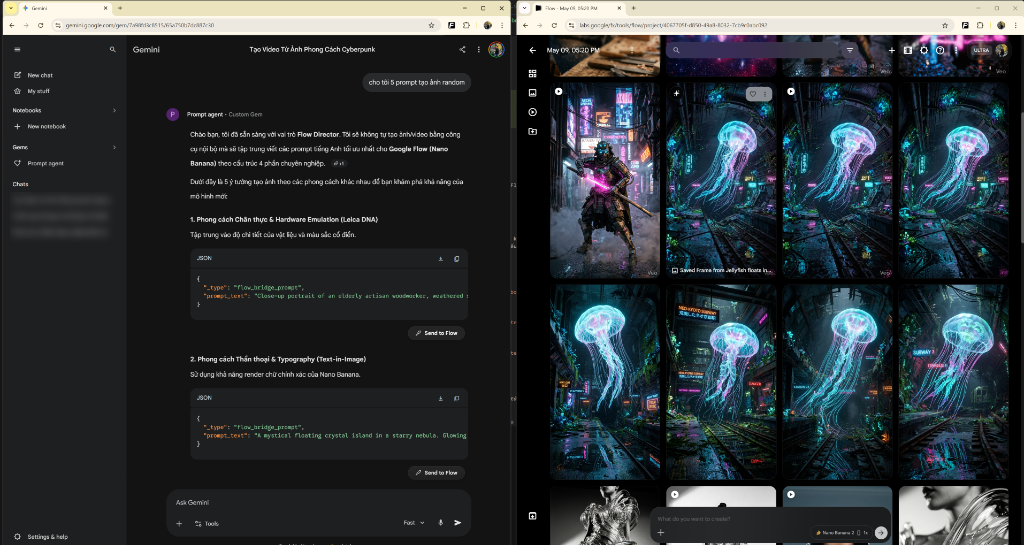
Phiên bản này tập trung vào 3 mục tiêu cốt lõi: tối giản hoá thao tác (loại bỏ các bước phân cấp rườm rà), kiểm soát góc máy & dáng nhân vật bằng 3D trực quan ngay trong trang làm việc, và hoạt động gọn nhẹ trên một cửa sổ duy nhất cùng thanh bên Ask Gemini tích hợp sẵn của trình duyệt Chrome.
1. Những điểm mới nổi bật trong phiên bản v4.2.0
🧍 Pose Studio 3D tích hợp trực tiếp trong trang & Camera DNA
Thay vì phải mô tả góc máy và tư thế nhân vật bằng chữ một cách cảm tính, giờ đây trên thanh công cụ nổi của tiện ích có sẵn nút Pose Studio 3D:
- Click chuột trái: Mở ngay cửa sổ dựng hình Pose Studio 3D đè lên trang AI đang làm việc (đồng bộ hoàn toàn tông màu tối trung tính
#121212/#1A1A1A/#10b981với tiện ích). - Click chuột phải: Mở Pose Studio 3D ở một tab trình duyệt độc lập (
https://prompt.manhhuynh.work/pose/). - Chèn tự động 2-trong-1 (
Insert Pose): Khi bấm nút Insert Pose, tiện ích tự động đính kèm ảnh PNG dáng nhân vật 3D vào ô upload tham chiếu, đồng thời điền thông số góc máy chuẩn điện ảnh (Camera & Shooting Angle DNA) gồm tiêu cự ống kính (mm), cỡ cảnh, góc máy cao/thấp (°elevation), góc xoay ngang so với hướng mặt nhân vật và độ nghiêng máy (Dutch tilt) thẳng vào khung prompt.
📖 Tối giản hoá hoàn toàn PromptBook & Nút Book 2-trong-1
Trong các phiên bản trước, việc phải tạo Project rồi tạo Scene trước khi lưu một câu prompt gây mất thời gian khi đang làm việc nhanh. Ở bản v4.2.0:
- Loại bỏ hoàn toàn tab Projects & bộ đếm Credit thừa: Mở popup tiện ích hoặc menu nổi trên web là vào thẳng danh sách phẳng PromptBook (2 dòng gọn gàng cho mỗi thẻ prompt, có nút Paste trực tiếp). Toàn bộ dữ liệu prompt đã lưu trước đây trên máy hoặc trên Cloud Firestore vẫn được giữ nguyên và gộp tự động.
- Nút Book hợp nhất trên thanh công cụ nổi:
- Click chuột trái vào icon Quyển sách (Book): Lưu nhanh (1-click) câu prompt đang gõ trên trang vào thẳng PromptBook mà không cần nhập tiêu đề hay chọn thư mục.
- Click chuột phải vào icon Quyển sách (Book): Mở ngay menu PromptBook nổi để tìm kiếm và Paste prompt đã lưu vào khung nhập.
- Viền modal siêu trong suốt: Toàn bộ thanh công cụ nổi và hộp thoại được tinh chỉnh viền mờ tinh tế, không gây vướng mắt trên giao diện sáng tạo.
⚡ Kết nối Native Chrome “Ask Gemini” & Bộ 5 Slash Skills
Không cần chia đôi 2 cửa sổ hay tạo Gem thủ công như trước. Bạn chỉ cần mở thanh bên Ask Gemini tích hợp sẵn ở góc trên bên phải trình duyệt Chrome (tự động đọc được hình ảnh/video trên tab Google Flow hiện tại) và cài bộ Slash Skills tại chrome://skills/yourSkills (dán lên thanh địa chỉ Chrome để mở). Nhấn 📋 Copy Skill bên dưới để sao chép thẳng nội dung prompt vào Clipboard:
/still—⬇ .md: Tạo Ảnh tĩnh Photoreal, Packshot sản phẩm theo vật liệu và Character Sheet./shot—⬇ .md: Tạo Video T2V, I2V Motion-Only (20–35 từ, chỉ tả chuyển động) & Storyboard TVC nhiều cảnh./edit—⬇ .md: Chỉnh sửa ảnh (Change / Preserve / Integration), Ghép nhiều ảnh & V2V Product Relight./think—⬇ .md: Tư duy Sáng tạo 6-in-1 (Viral Hook 3s đầu, SCAMPER, Six Thinking Hats, Reverse Brainstorming, Tree of Thoughts & First Principles)./flow—⬇ .md: Bản All-in-One Flow Director tự động phân luồng cả 4 chế độ.
Bạn cũng có thể xem đầy đủ tài liệu tại Trang chủ PromptAgent Portal hoặc Trang Hướng dẫn.
🛡️ Mặc định chỉ hiển thị trên Google Flow — Không làm phiền khi lướt web
Để tránh việc thanh công cụ nổi xuất hiện ngoài ý muốn trên các trang web thông thường:
- Mặc định: Thanh công cụ nổi chỉ tự động hiển thị khi bạn truy cập Google Flow (
flow.google.com). - Bật thủ công cho các trang AI khác: Khi làm việc trên Adobe Firefly, Magnific / Freepik Spaces, Higgsfield AI, Midjourney hay bất kỳ công cụ AI nào khác, bạn chỉ cần mở popup tiện ích và bấm nút
Paste: OFF→Paste: ONtrên thanh trạng thái (hoặc bật Auto-detect AI sites trong phần cài đặt).
2. Tóm tắt thao tác sử dụng trên thanh công cụ nổi (3 nút)
- Nút Paste (Trên cùng / Bên trái):
- Chuột trái: Đọc prompt từ Clipboard (tự động nhận diện khối ` ```text ` từ Ask Gemini hoặc tách nhiều cảnh Storyboard) và điền thẳng vào ô nhập.
- Chuột phải: Mở danh sách 10 Prompt vừa dán gần đây để dùng lại nhanh.
- Nút Book — PromptBook (Ở giữa):
- Chuột trái: Lưu tức thì prompt đang có trong ô nhập vào PromptBook.
- Chuột phải: Mở menu chọn và dán prompt đã lưu trong PromptBook.
- Nút Pose Studio 3D (Dưới cùng / Bên phải):
- Chuột trái: Mở cửa sổ Pose Studio 3D ngay trong trang.
- Chuột phải: Mở Pose Studio 3D trong tab mới.
Nếu bạn có góp ý hoặc cần bổ sung tính năng cho workflow làm phim/hình ảnh AI, hãy nhắn cho mình nhé!
PromptAgent Flow Bridge v4.2.0 Update: In-Page Pose Studio 3D, Flat PromptBook & Ask Gemini Slash Skills
Following extensive real-world production use on Google Flow (flow.google.com), PromptAgent Flow Bridge v4.2.0 is now live.
This release focuses on three pillars: zero-friction prompt management, interactive 3D character & camera angle control directly inside your AI workspace, and single-window synergy with Chrome’s built-in Ask Gemini side panel.
1. What’s New in v4.2.0
🧍 In-Page Pose Studio 3D & Camera DNA Injection
Instead of guessing camera angles and body posture descriptions in text, the floating dock now includes a dedicated Pose Studio 3D button:
- Left-click: Opens the Pose Studio 3D modal directly over your active workspace, styled in a unified neutral dark palette (
#121212/#1A1A1A/#10b981). - Right-click: Opens Pose Studio 3D in a standalone browser tab (
https://prompt.manhhuynh.work/pose/). - 1-Click
Insert Pose(Image + Camera DNA): Automatically attaches the rendered 3D pose reference PNG and injects structured Camera & Shooting Angle DNA (focal length inmm, shot framing, vertical elevation in degrees, horizontal azimuth relative to character orientation, and Dutch tilt) into your prompt input.
📖 Flat PromptBook & Unified 2-in-1 Book Button
We removed the multi-level Project/Scene folder hierarchy and legacy web credit counter so you can save and reuse prompts with zero friction:
- Flat PromptBook List: Opening the extension popup or floating menu goes straight into a clean, searchable list of saved prompts with 1-click Paste buttons (all previously saved local and Firestore prompts are automatically preserved and merged).
- Unified Book Button on the Floating Dock:
- Left-click on the Book icon: Instantly saves the current prompt from the page editor into PromptBook with an auto-generated title.
- Right-click on the Book icon: Opens the floating PromptBook menu to browse and paste saved prompts.
- High-Transparency Borders: Subtle, ultra-transparent borders keep the floating dock and modals unobtrusive over your canvas.
⚡ Native Chrome “Ask Gemini” & 5 Modular Slash Skills
Work in a single browser window alongside Chrome’s built-in Ask Gemini side panel and set up 1-click Slash Skills at chrome://skills/yourSkills (paste into Chrome’s address bar). Click 📋 Copy Skill below to copy each skill prompt directly to your clipboard:
/still—⬇ .md: Photoreal Still Images, material-driven Packshots, and Character Sheets./shot—⬇ .md: Video T2V, concise I2V Motion-Only prompts (20–35 words), and multi-shot TVC storyboards./edit—⬇ .md: Surgical Image Edits (Change / Preserve / Integration), multi-image compositing, and V2V Product Relight./think—⬇ .md: 6-in-1 Creative Thinking orchestrator (Lateral Thinking, SCAMPER, Six Thinking Hats, Reverse Brainstorming, Tree of Thoughts, First Principles)./flow—⬇ .md: All-in-One Flow Director routing across all modes.
You can also explore the full documentation on the PromptAgent Portal or the User Guide.
🛡️ Non-Intrusive Default: Google Flow Only by Default
To prevent the floating dock from appearing unexpectedly while browsing other websites:
- Default: The floating dock appears automatically only on Google Flow (
flow.google.com). - Manual Per-Site Toggle: To enable the dock on Adobe Firefly, Magnific / Freepik Spaces, Higgsfield AI, Midjourney, or any other AI tool, simply open the extension popup and click
Paste: OFF→Paste: ON(or enable Auto-detect AI sites in Settings).