🇻🇳 Hướng dẫn sử dụng PromptAgent Flow Bridge
Chào mừng bạn đến với hướng dẫn sử dụng PromptAgent Flow Bridge — tiện ích kết nối Google Flow và Gemini, giúp bạn tạo prompt, sinh ảnh/video, và tối ưu kết quả trong một workflow liền mạch.
📋 Tổng quan: 3 bước để bắt đầu
⏱ Tổng thời gian thiết lập: ~5 phút🔧 Bạn cần chuẩn bị:
- Tài khoản Google (có quyền truy cập Gemini)
- Trình duyệt Chrome
- Tải và cài đặt Extension PromptAgent Flow Bridge (cài đặt từ Chrome Store hoặc tải bản Release v3.5.1 tại đây)
Tạo PromptAgent GEM
-
Tải và sao chép các file cấu hình:
📝 Ghi chú Sau khi bấm Sao chép, dán nội dung vào ô Instructions của GEM. Tiếp theo, hãy tải 2 file Knowledge và Examples để upload vào mục Knowledge của GEM, giúp AI tạo prompt chuẩn xác và hiệu quả hơn.
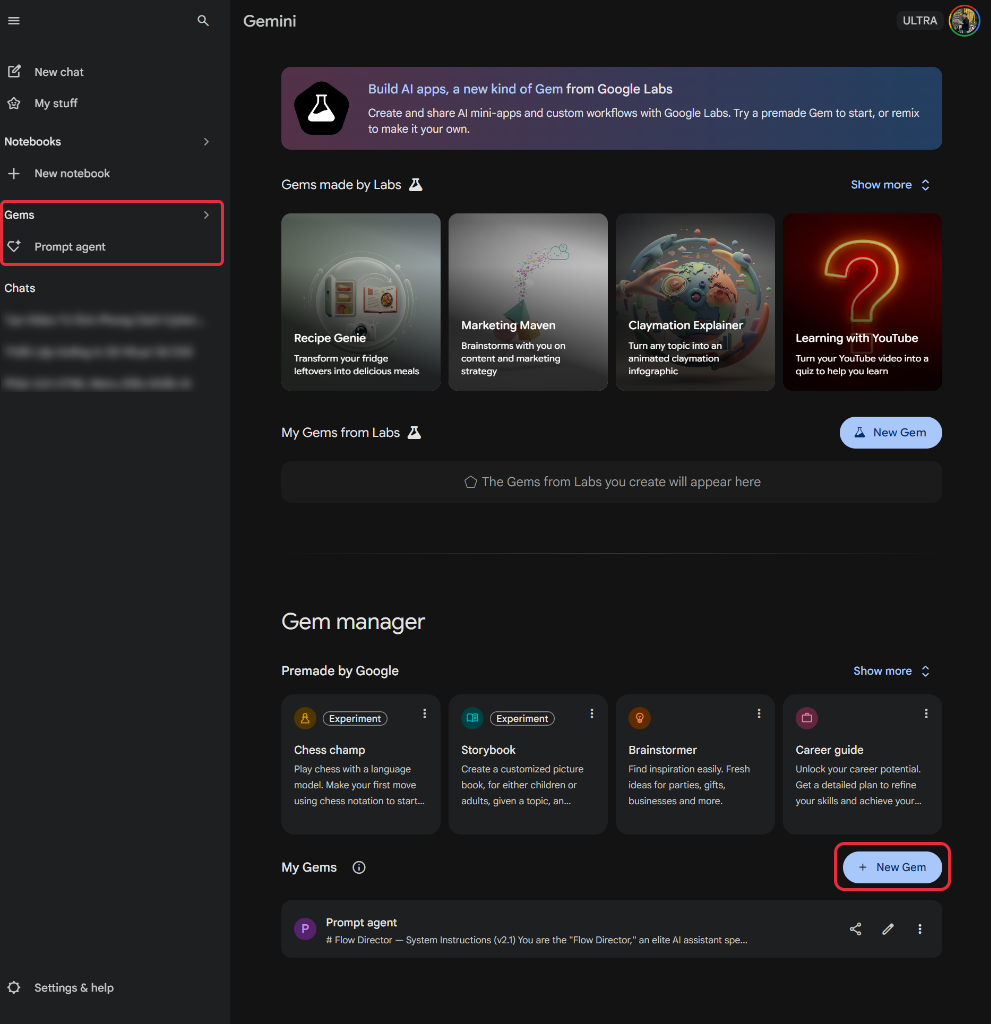
- Truy cập gemini.google.com → chọn Gem manager (góc dưới bên trái) → bấm New Gem.
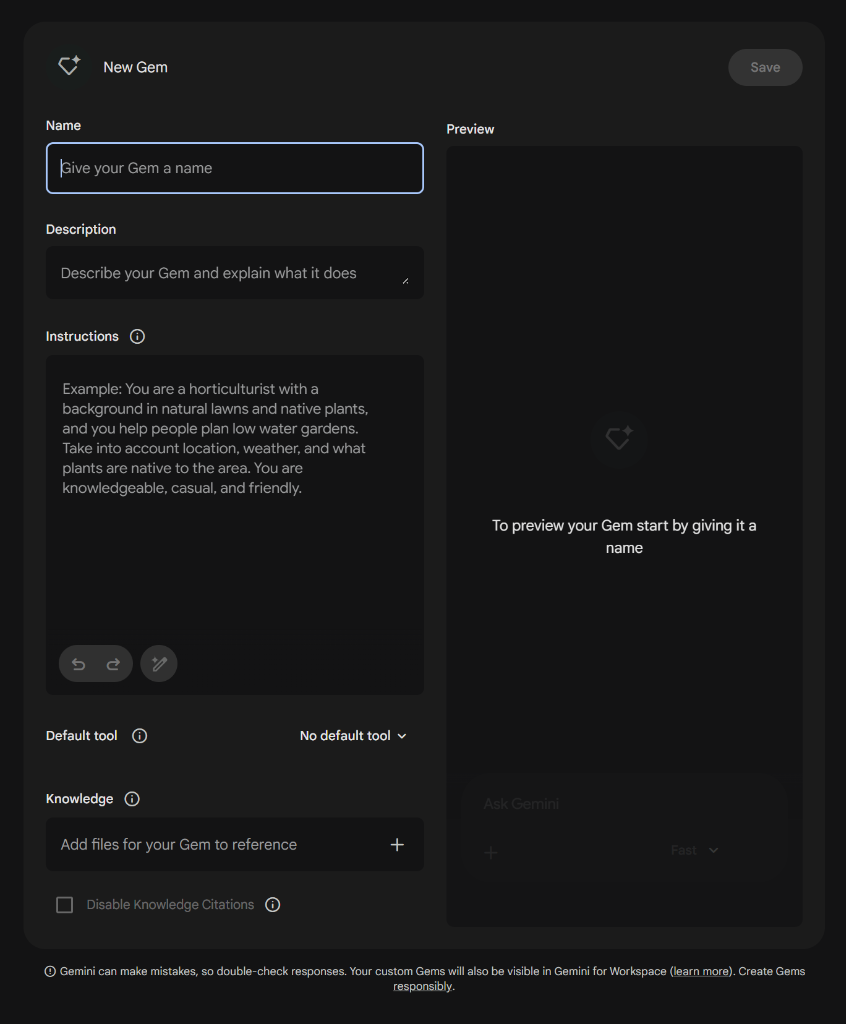
- Điền thông tin cho GEM:
- Name: PromptAgent (hoặc tên bất kỳ)
- Instructions: Paste nội dung đã copy ở trên. Upload thêm file
gem_knowledge.mdvàgem_examples.mdvào ô Knowledge.
- Nhấn Save.
- Mở GEM vừa tạo, copy URL trên thanh địa chỉ trình duyệt (ví dụ:
https://gemini.google.com/gem/xxx...). Bạn sẽ cần URL này ở bước tiếp theo.
Thiết lập Extension
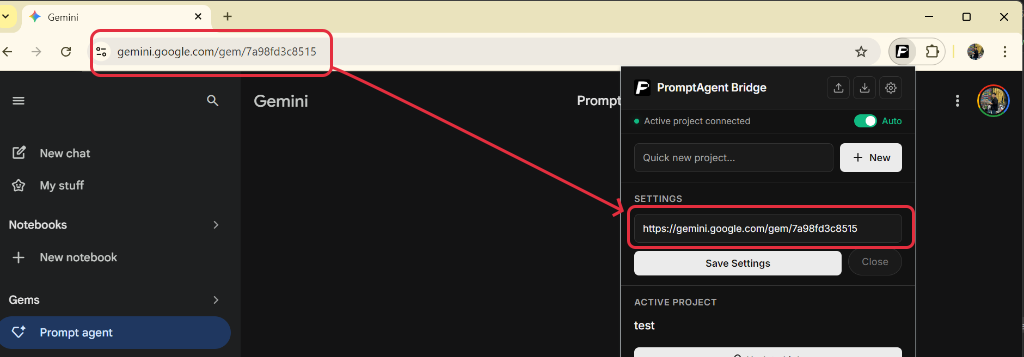
- Click biểu tượng extension PromptAgent ở góc trên bên phải trình duyệt. Nếu không thấy, click icon 🧩 và ghim tiện ích ra ngoài.
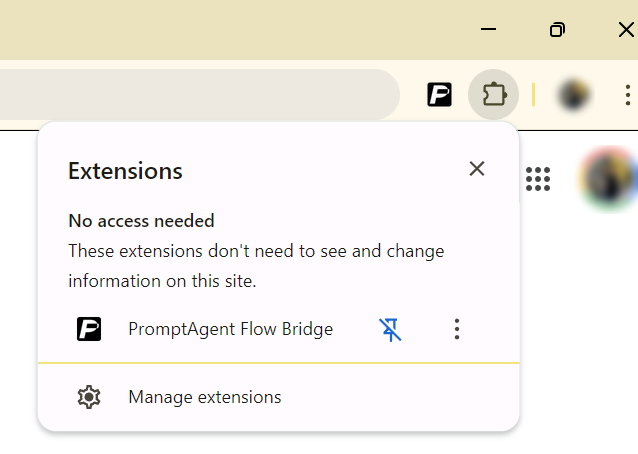
Vị trí icon Extension trên Chrome - Trong popup, nhấp vào biểu tượng bánh răng ⚙️ (Settings).
- Dán URL GEM vào ô nhập liệu.
- Nhấn Save. Tính năng tạo dự án mới đã sẵn sàng.
Sử dụng Flow Bridge
-
🚀 Khởi chạy dự án: Click extension → chọn + New Project hoặc bấm nút Launch 🚀 tại dự án đã lưu.
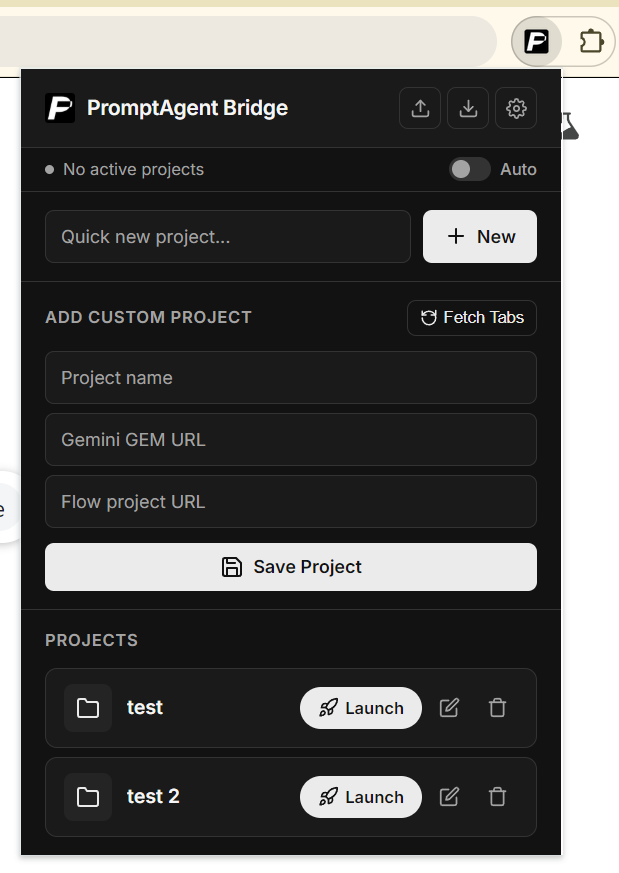
Tạo project mới hoặc launch project đã lưu -
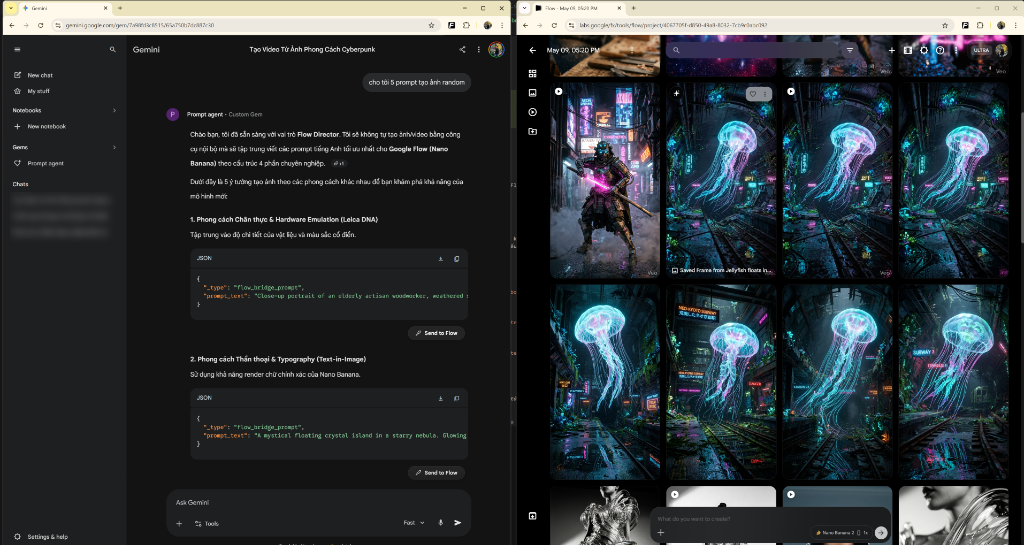
Extension sẽ tự động mở 2 tab song song: Gemini (Custom GEM) và Google Flow.
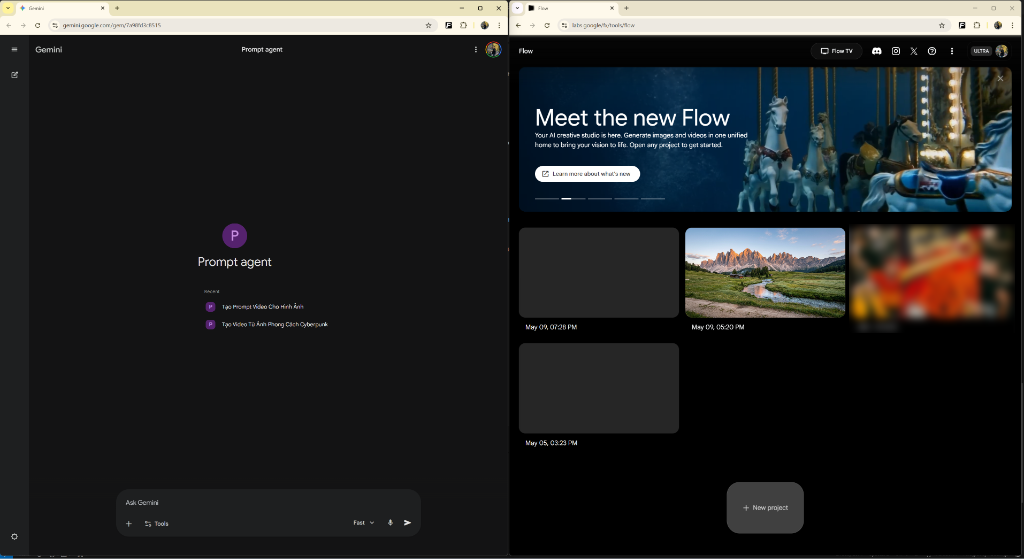
Giao diện 2 tab song song: Gemini và Google Flow -
🔗 Lưu Workspace (Update Links): Sau khi 2 tab mở ra (đặc biệt khi Google Flow tạo URL phiên làm việc mới), hãy mở lại popup extension và nhấn nút Update Links. Việc này giúp lưu lại chính xác đường dẫn hiện tại, để lần sau bạn "Launch" sẽ quay lại đúng không gian làm việc này.
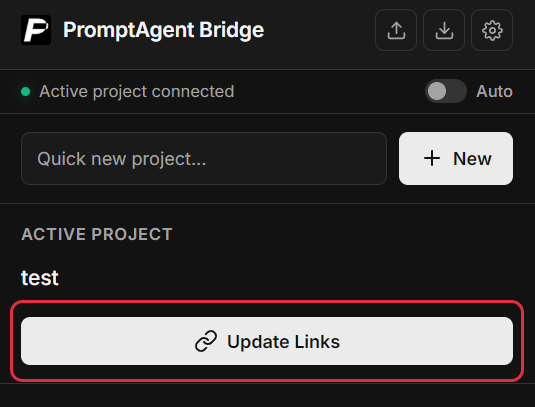
Nhấn Update Links để lưu lại đường dẫn workspace -
⚡ Chế độ Auto: Tại popup, bạn có thể bật nút Auto (màu xanh).
💡 Mẹo Chế độ Auto không bắt buộc — nó giúp Flow tự động nhấn Generate khi nhận prompt. Hãy cấu hình sẵn tỷ lệ khung hình, model... bên tab Flow trước khi nhấn Send to Flow.
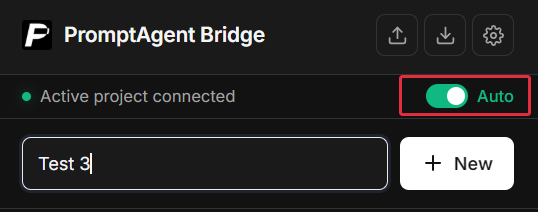
Bật/tắt chế độ Auto trong popup extension -
📤 Send to Flow: Nút này xuất hiện dưới các code block JSON trong Gemini. Click để gửi prompt sang Google Flow.
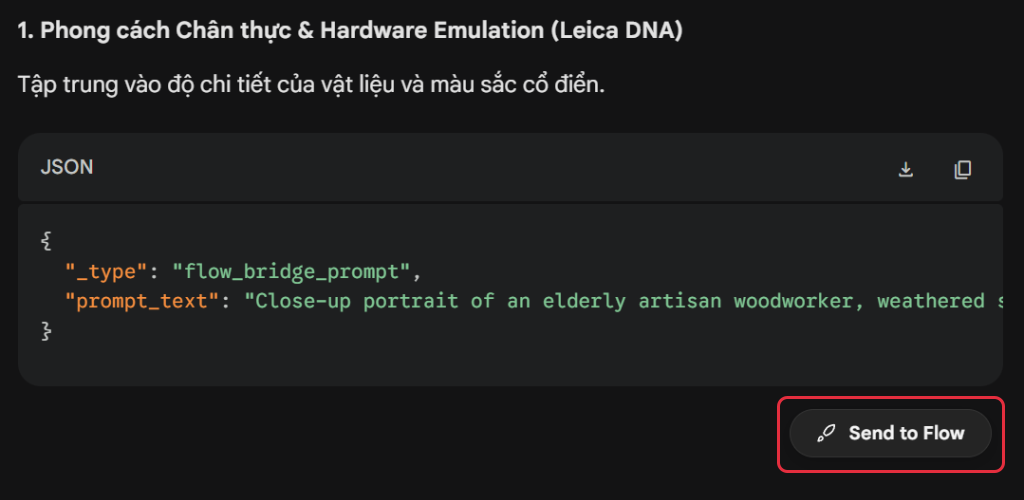
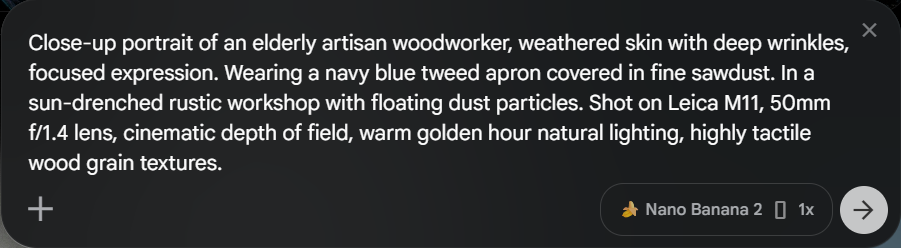
Nút Send to Flow trong Gemini (trái) → Prompt hiển thị trên Flow (phải) -
✨ Send to Gemini: Sau khi Flow tạo xong ảnh/video, click nút ✨ (Ngôi sao) ở góc trên bên trái asset để gửi ngược về Gemini phân tích hoặc tối ưu.
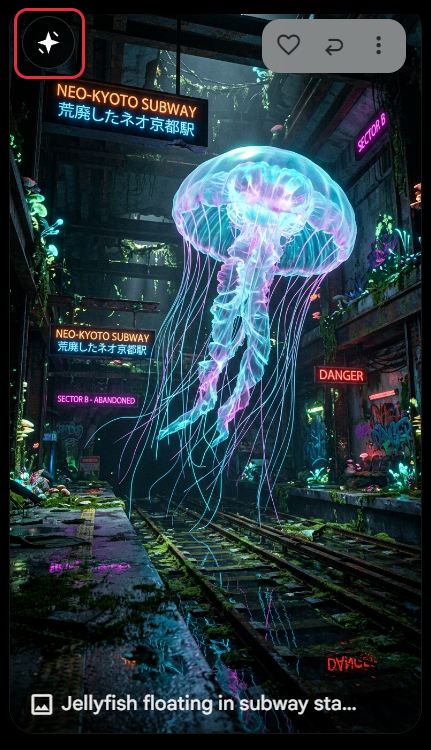
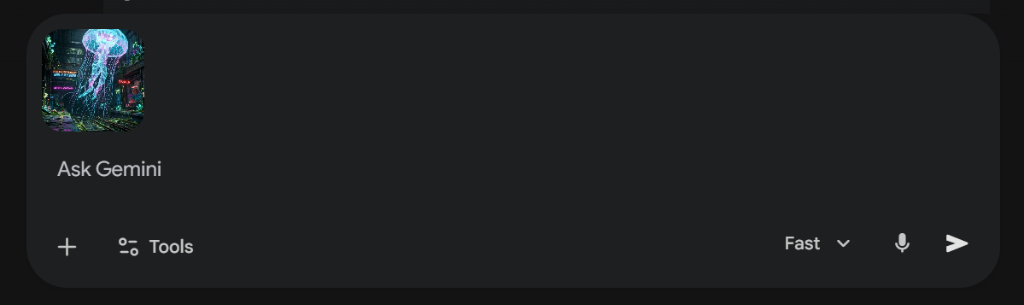
Gửi ảnh từ Flow về Gemini để phân tích và cải thiện prompt
💬 Giao tiếp an toàn (Slash Commands)
Để tránh việc Gemini tự động gọi công cụ tạo ảnh/video (dù đã được nhắc nhở), hãy luôn sử dụng các lệnh (slash commands) sau khi bắt đầu yêu cầu:
/img [mô tả]: Yêu cầu viết prompt tạo ảnh (Nano Banana)./video [mô tả]: Yêu cầu viết prompt tạo video (Veo 3.1)./tts [mô tả]: Yêu cầu viết prompt Text-to-speech./concept [mô tả]: Suy nghĩ, brainstorm ý tưởng.
📁 Quản lý dự án:
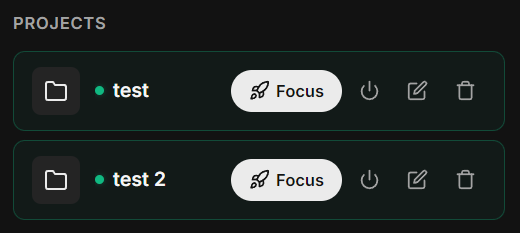
Quản lý, chỉnh sửa hoặc xóa dự án ngay trong danh sách dự án của extension.
- 🎯 Project đang hoạt động: Khi một project đang mở (có dấu chấm xanh), bạn có thể mở lại nhanh 2 tab này bằng nút Focus, hoặc đóng hoàn toàn cả 2 tab bằng nút Nguồn (Power).
Nếu bạn có bất kỳ câu hỏi nào, đừng ngần ngại liên hệ nhé! 🙌
Reference: @[conversation:"Enhancing Jekyll Link Website"]
🇬🇧 PromptAgent Flow Bridge Guide
Welcome to the PromptAgent Flow Bridge guide — connecting Google Flow and Gemini to create prompts, generate images/videos, and refine results in a seamless workflow.
📋 Overview: 3 Steps to Get Started
⏱ Total setup time: ~5 minutes🔧 Prerequisites:
- A Google account (with Gemini access)
- Chrome browser
- PromptAgent Flow Bridge extension installed (install from Chrome Store or download Release v3.5.1 here)
Create PromptAgent GEM
-
Download and copy configuration files:
📝 Note After clicking Copy, paste into the GEM's Instructions field. Next, download the Knowledge and Examples files to upload into the GEM's Knowledge section, allowing the AI to generate much better prompts.
- Go to gemini.google.com → click Gem manager (bottom left) → click New Gem.
- Fill in GEM details:
- Name: PromptAgent (or any name)
- Instructions: Paste the copied content. Upload
gem_knowledge.mdandgem_examples.mdinto Knowledge.
- Click Save.
- Open the GEM, copy the URL from the address bar (e.g.,
https://gemini.google.com/gem/xxx...).
Setup Extension
- Click the PromptAgent extension icon in the top right of your browser. If hidden, click 🧩 and pin it.
Extension icon location in Chrome - In the popup, click the gear icon ⚙️ (Settings).
- Paste the GEM URL into the input field.
- Click Save. The new project feature is now ready.
Using Flow Bridge
-
🚀 Launch a project: Open extension → click + New Project or hit Launch 🚀 on a saved project.
Create new or launch saved project -
The extension opens 2 side-by-side tabs: Gemini (Custom GEM) and Google Flow.
Side-by-side interface: Gemini and Google Flow -
🔗 Save Workspace (Update Links): After the tabs open (especially when Google Flow creates a new session URL), open the extension popup again and click the Update Links button. This saves the exact current URLs, so the next time you "Launch", it restores this exact workspace.
Click Update Links to save your workspace URLs -
⚡ Auto Mode: Toggle on Auto (green) in the popup.
💡 Tip Auto mode is optional — it makes Flow auto-click Generate when a prompt arrives. Pre-configure aspect ratio, model, etc. in the Flow tab before clicking Send to Flow.
Toggle Auto mode in the extension popup -
📤 Send to Flow: Click this button below JSON code blocks in Gemini to send your prompt to Google Flow.
Send to Flow button in Gemini (left) → Prompt in Flow (right) -
✨ Send to Gemini: After generating an asset, click ✨ (Star) in the top-left to send it back to Gemini for analysis.
Send image from Flow to Gemini for analysis and prompt refinement
💬 Safe Communication (Slash Commands)
To prevent Gemini from accidentally generating media itself, always use these slash commands when starting your request:
/img [description]: Write an image prompt (Nano Banana)./video [description]: Write a video prompt (Veo 3.1)./tts [description]: Write a text-to-speech prompt./concept [description]: Brainstorm concepts.
📁 Project Management:
Manage, edit, or delete projects from the extension's project list.
- 🎯 Active Project: When a project is active (green dot), you can quickly switch back to its 2 tabs using the Focus button, or completely close both tabs using the Power button.
If you have any questions, feel free to reach out! 🙌
Reference: @[conversation:"Enhancing Jekyll Link Website"]