Tên Add-on: DA2 + PBR Texture Generator from Image (v1.0.3)
Tương thích: Blender 4.2, 4.3, 4.4, 4.5, 5.0+ (Windows, hỗ trợ CUDA GPU & CPU)
Giấy phép: Mã nguồn mở (MIT License) / Miễn phí
I. Giới thiệu chung
Khi làm cảnh 3D trong Blender, nếu chỉ dán một tấm ảnh 2D lên mặt phẳng (Plane) thông thường thì lúc xoay góc camera hoặc chiếu đèn xiên qua, bề mặt sẽ bị phẳng lì và thiếu chiều sâu. Ngược lại, nếu phải dựng khối (sculpt/model) lại từng chi tiết nhỏ cho các vật thể phụ hoặc chuyển qua phần mềm thứ ba để tách từng kênh map thì lại tốn nhiều thời gian.
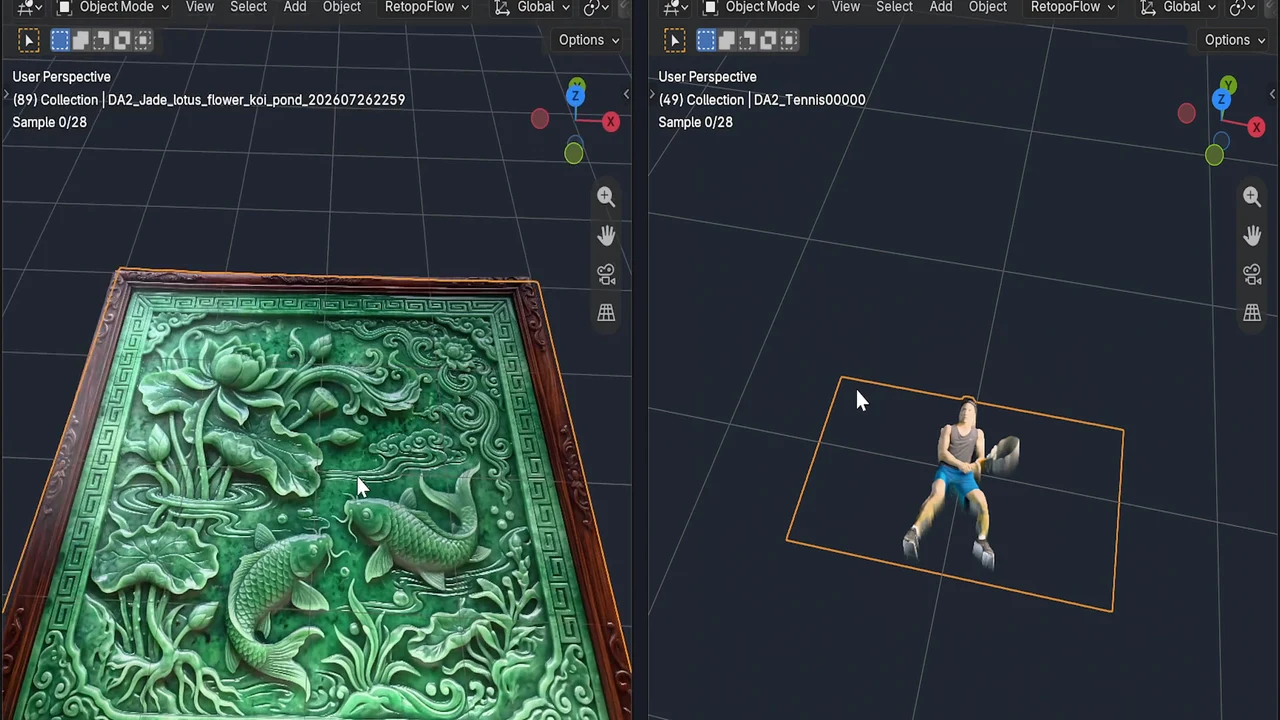
DA2 + PBR Texture Generator là add-on mã nguồn mở mình phát triển để giải quyết việc này ngay bên trong Blender. Công cụ tích hợp mô hình Depth Anything V2 (ONNX) kết hợp bộ nhận diện vật liệu MINC-23 để tự động tính toán Depth Map (32-bit Float EXR) cùng trọn bộ map PBR (Albedo, Normal, Roughness, Metallic), đồng thời tự dựng sẵn một 3D Plane nổi khối (Displacement + Principled BSDF) đúng tỷ lệ ảnh gốc chỉ sau một cú click.
Ngoài ảnh tĩnh (Single Image), phiên bản v1.0.3 còn hỗ trợ xử lý hàng loạt cho Image Sequence và Video File, tích hợp bộ khử nháy chiều sâu (Temporal Deflicker) giữa các frame và giữ nguyên kênh nền trong suốt (Alpha) của chuỗi ảnh gốc trên lưới 3D.
Video hướng dẫn nhanh (1 phút)
II. Tính năng chính
- Trích xuất Depth Map 32-bit EXR: Sử dụng Depth Anything V2 (hỗ trợ 3 phiên bản model:
Small ~98MB,Base ~392MB, vàLarge ~1.3GB), chạy trực tiếp bằng ONNX Runtime với tăng tốc GPU CUDA hoặc CPU. - Tạo trọn bộ PBR Map tự động: Tự động tách Albedo (khử bóng đổ ambient occlusion), Normal Map (kết hợp độ dốc khối lớn và chi tiết vi bề mặt), Roughness và Metallic.
- Nhận diện vật liệu bằng AI (MINC-23 ONNX): Tự phân loại 23 nhóm chất liệu (kim loại vàng/đồng, gỗ, gốm, đá cẩm thạch, nhựa, vải...) để tự động điều chỉnh độ bóng và độ kim loại hợp lý, hạn chế lỗi nhận nhầm vùng đá trắng thành kim loại.
- Dựng sẵn 3D Displaced Plane (1-Click): Tự tạo Plane đúng tỷ lệ khung hình của ảnh đầu vào, gắn sẵn Subdivision + Displacement Modifier và nối đầy đủ các node trong Shader Editor.
- Hỗ trợ Image Sequence & Video (Temporal Deflicker): Xử lý chuỗi ảnh hoặc video không gây đơ giao diện Blender, có bộ lọc làm mượt độ sâu liên thời gian để khối 3D chuyển động êm, không bị giật nháy giữa các frame.
- Giữ nguyên kênh Alpha gốc: Nếu ảnh tĩnh hoặc chuỗi Image Sequence đầu vào đã được tách nền sẵn (có kênh Alpha), add-on sẽ tự động nối kênh Alpha đó vào shader của Plane 3D.
III. Hướng dẫn tải và cài đặt
Bước 1: Tải file cài đặt từ GitHub Releases
- Truy cập trang GitHub Releases của DA2 + PBR Generator.
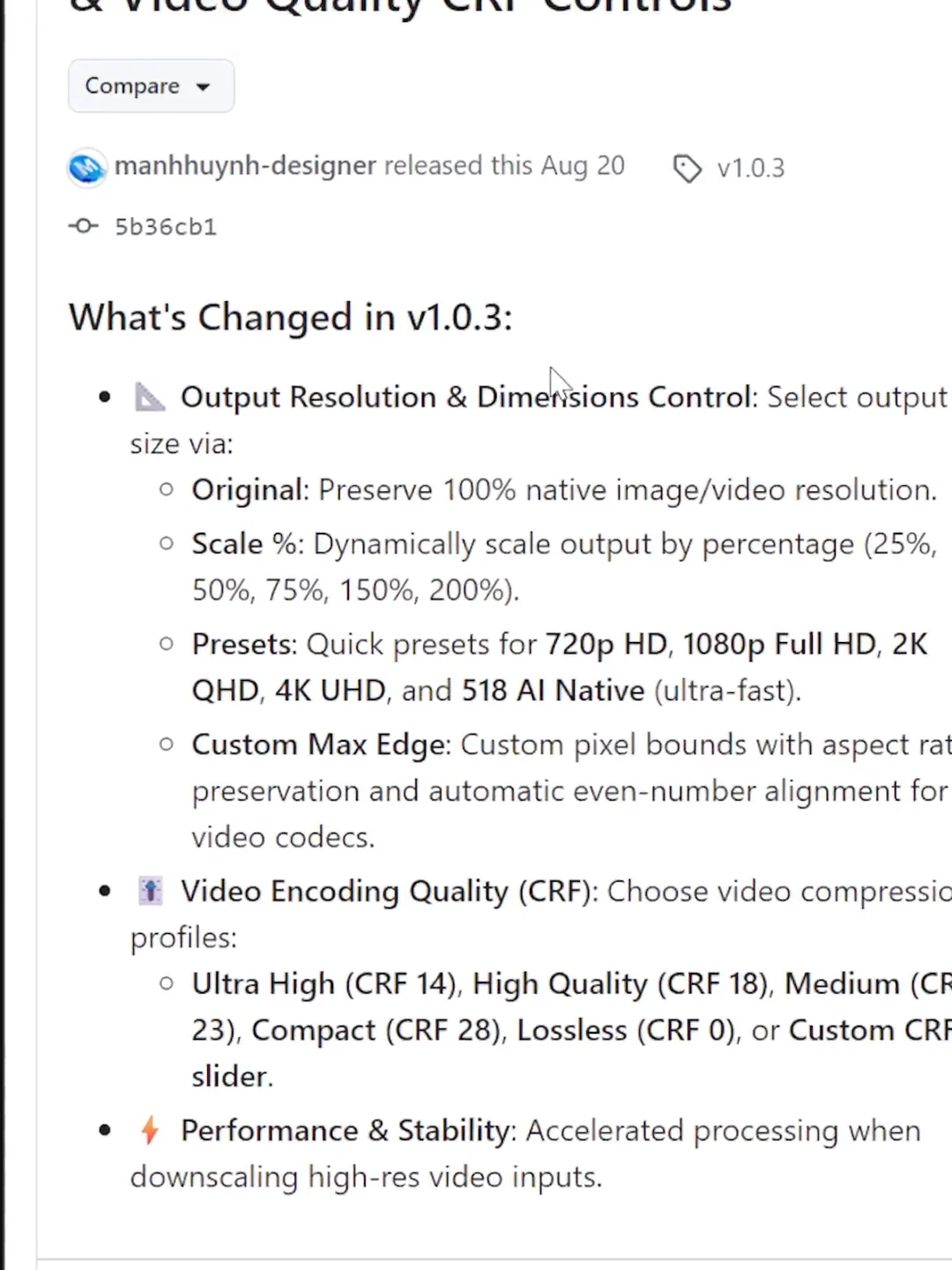
- Tại phiên bản mới nhất (v1.0.3), bấm tải file nén
da2_pbr_generator_v1.0.3.zipvề máy (không giải nén file zip này).
Bước 2: Cài đặt vào Blender và tải AI Model
- Mở Blender, vào menu Edit > Preferences > Add-ons (hoặc Get Extensions trên Blender 4.2+ / 5.x).
- Bấm vào biểu tượng mũi tên nhỏ ở góc trên bên phải cửa sổ Preferences, chọn Install from Disk… và trỏ tới file
da2_pbr_generator_v1.0.3.zipvừa tải. - Tích chọn bật DA2 + PBR texture Generator from Image.
- Nhấn phím
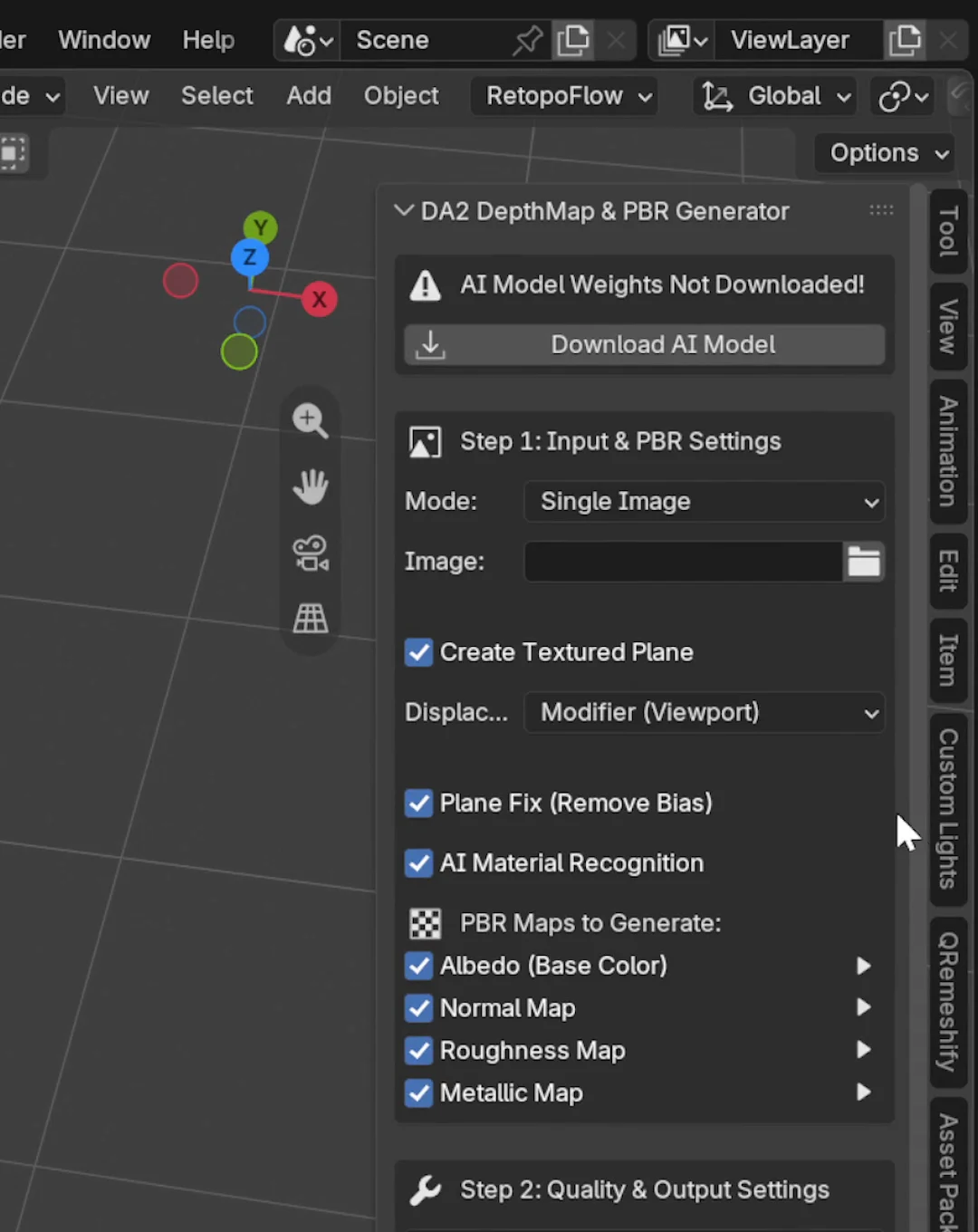
Nngoài màn hình 3D Viewport để mở thanh công cụ bên phải, chuyển sang tab DA2 Depth. - Trong lần đầu sử dụng, bấm nút Download AI Model ngay trên bảng điều khiển để công cụ tự tải model AI về máy. Sau khi tải xong một lần, các lần sau bạn có thể dùng offline hoàn toàn.
IV. Hướng dẫn sử dụng
1. Tạo Depth Map & khối 3D cho ảnh tĩnh (Single Image)
- Tại mục Input Mode trong tab DA2 Depth, chọn chế độ Single Image.
- Chọn đường dẫn tới file ảnh 2D cần xử lý ở ô Input Image.
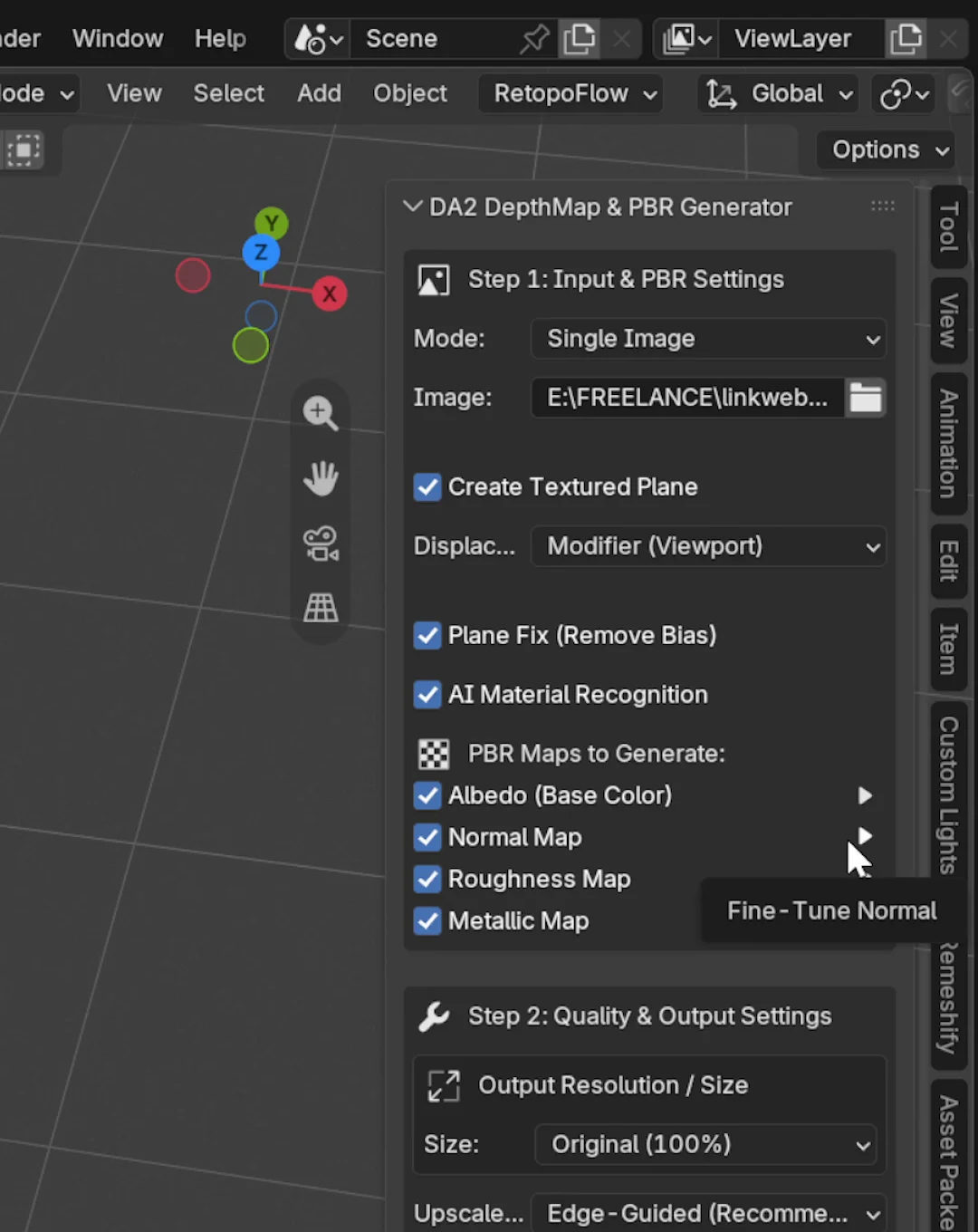
- Chọn độ phân giải xuất (Output Scale:
100%,50%,25%hoặcCustom) và tích chọn các kênh PBR muốn tạo (Albedo, Normal, Roughness, Metallic). Bạn có thể bấm mũi tên nhỏ cạnh từng map để mở thanh trượt tinh chỉnh độ mạnh Normal hoặc độ nhám bề mặt. - Giữ tùy chọn Create Textured Plane được bật, sau đó bấm Generate PBR Maps Now.
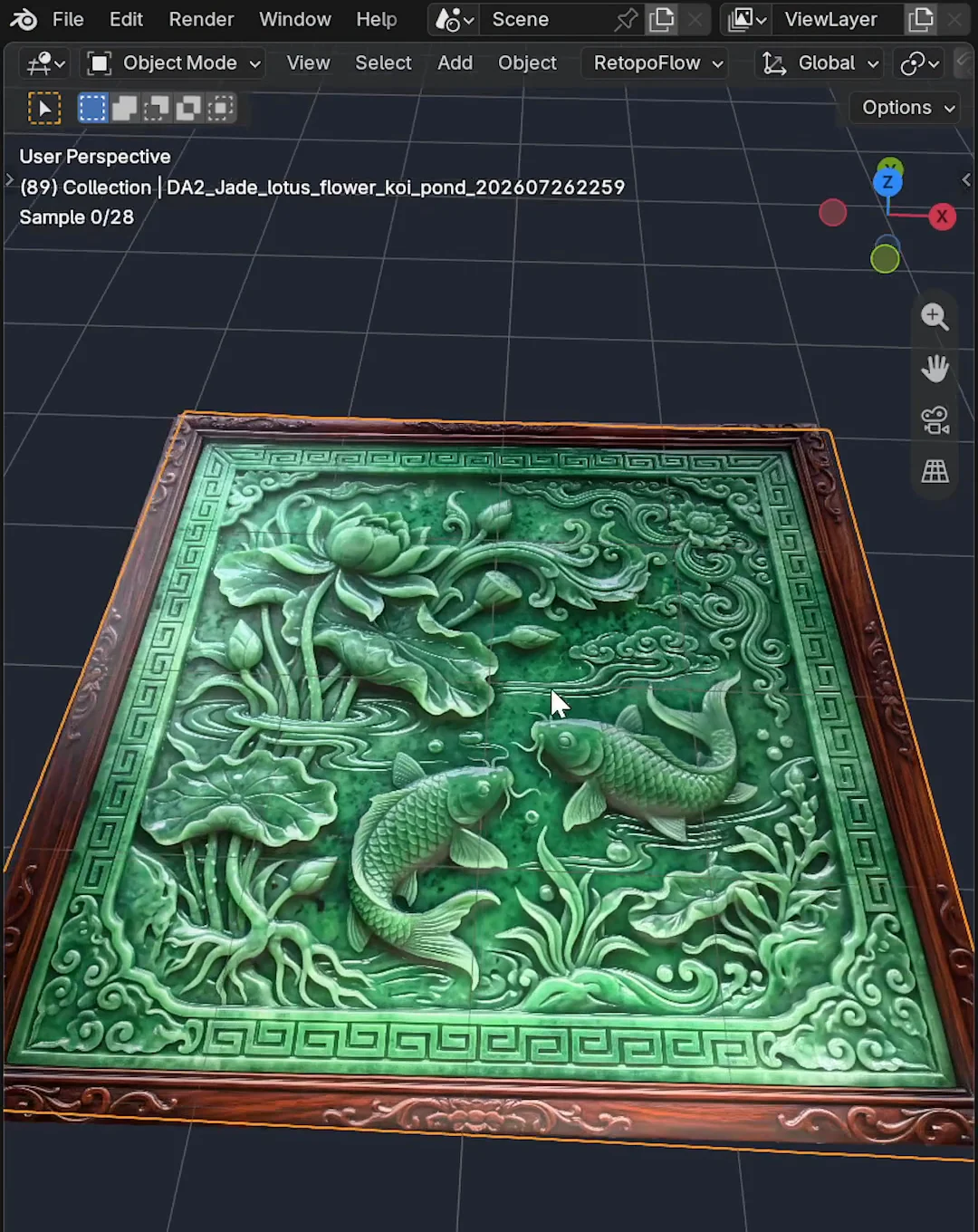
Ngay khi xử lý xong, add-on sẽ tạo một mặt phẳng 3D ngay giữa Viewport với đầy đủ Displacement và vật liệu PBR. Khi chuyển sang chế độ Rendered và xoay hướng đèn môi trường, bạn sẽ thấy bề mặt phản chiếu ánh sáng và nổi khối rõ rệt theo đúng chi tiết của ảnh.
2. Tạo Depth & PBR cho chuỗi ảnh động (Image Sequence / Video)
Nếu bạn cần đưa một đoạn footage hoặc chuỗi ảnh nhân vật/vật thể chuyển động vào không gian 3D để bắt sáng cùng môi trường Blender:
- Chuyển Input Mode sang Image Sequence (hoặc Video File) và chọn thư mục chứa chuỗi ảnh.
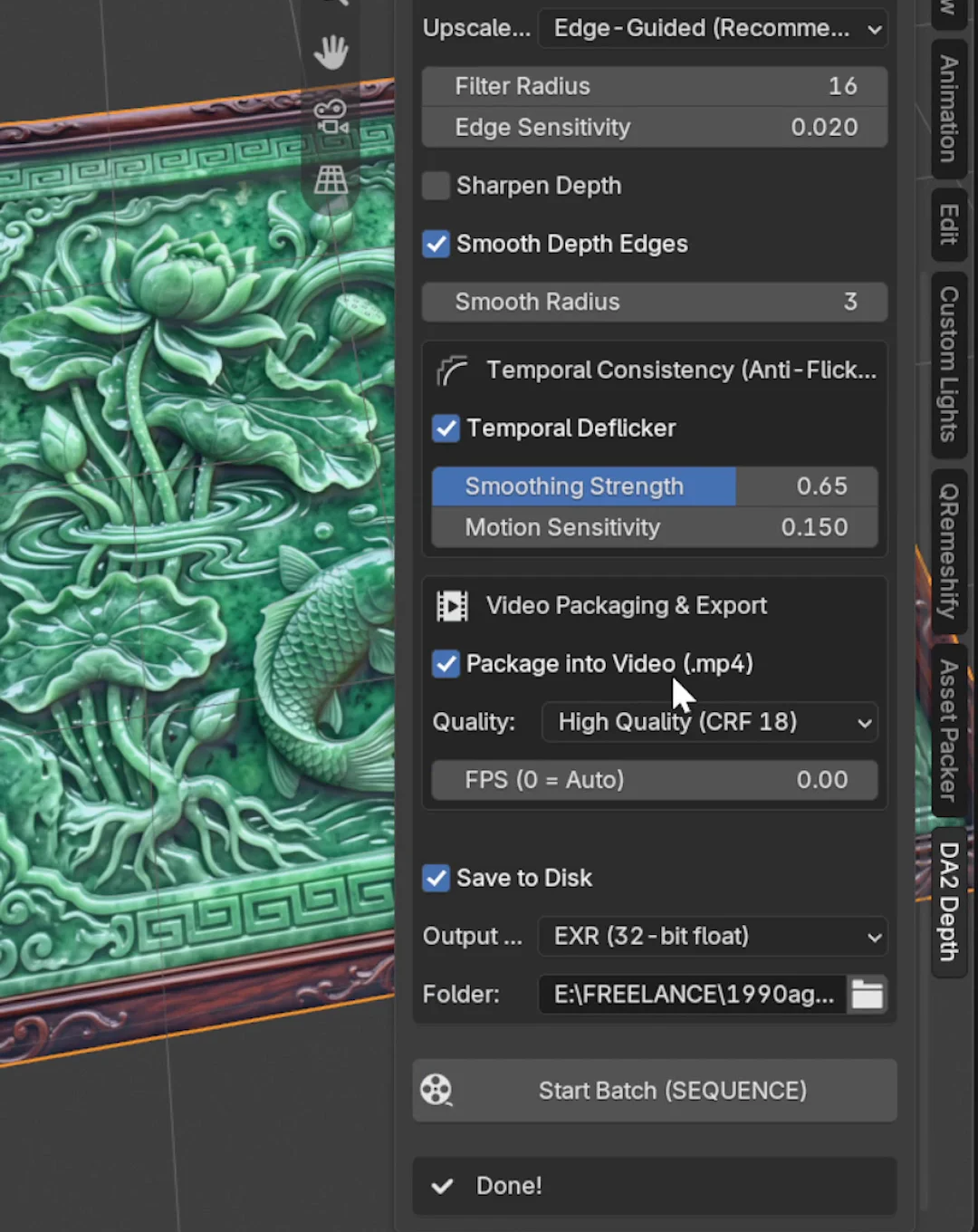
- Bật tùy chọn Temporal Deflicker và điều chỉnh Smoothing Strength (mặc định
0.65) cùng Motion Sensitivity. Tính năng này giúp cân bằng độ sâu giữa các frame liên tiếp, ngăn hiện tượng bề mặt 3D bị phập phồng hoặc nhấp nháy khi phát động. - Nếu cần xuất thêm bản xem trước dạng video
.mp4, bạn có thể bật Package as MP4 và chọn mức chất lượng nén (Video Quality CRF). - Bấm Generate PBR Maps Now để chạy batch cho toàn bộ chuỗi frame.
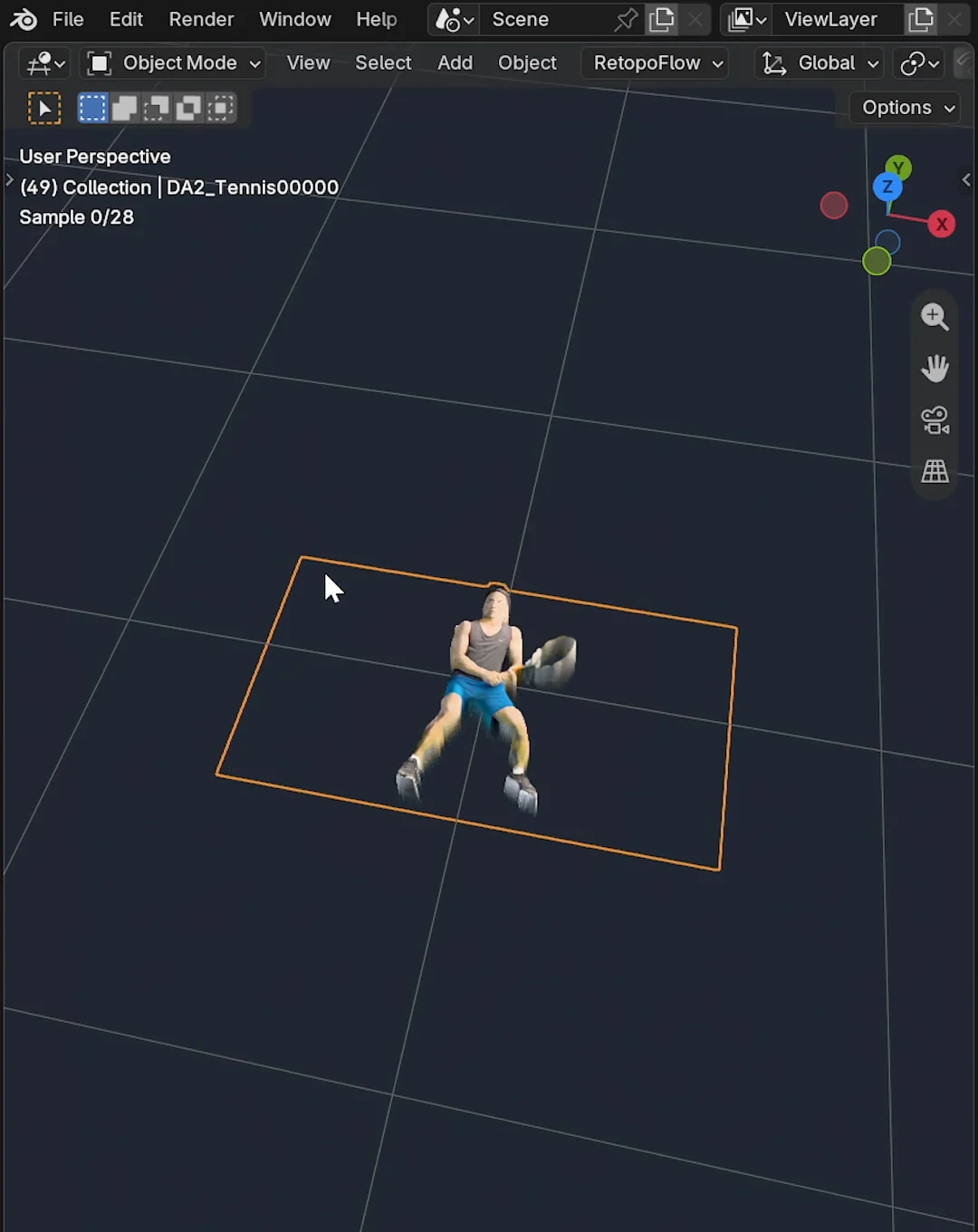
Lưu ý về nền trong suốt (Alpha Channel): Bản thân add-on không tự tách nền đối tượng, nhưng nếu chuỗi Image Sequence gốc của bạn đã có sẵn kênh nền Alpha (ví dụ chuỗi PNG RGBA đã tách nền trước), add-on sẽ tự động giữ nguyên phần nền trong suốt đó trên mặt phẳng 3D và cho phép toàn bộ chuỗi frame chuyển động nổi khối theo đúng timeline của Blender.
V. Cấu hình khuyến nghị
| Phiên bản Model | Dung lượng tải | RAM khuyến nghị | GPU VRAM |
|---|---|---|---|
| DA2 Small (Mặc định - Nhanh) | ~98 MB | 4 GB+ | Card tích hợp / Bất kỳ GPU nào |
| DA2 Base (Cân bằng) | ~392 MB | 8 GB+ | 4 GB+ VRAM |
| DA2 Large (Chi tiết cao nhất) | ~1.3 GB | 16 GB+ | 6 GB+ VRAM |
| MINC-23 Material Classifier | ~84.7 MB | 1 GB+ | Chạy nhẹ trên cả GPU & CPU |
VI. Nhật ký cập nhật (Changelog)
- Bổ sung tùy chọn Output Resolution Scaling (
100%,50%,25%hoặc kích thước tùy chỉnh) giúp tăng tốc độ xử lý khi làm việc với chuỗi ảnh 4K/8K. - Thêm bộ điều khiển chất lượng nén Video Quality (CRF) khi đóng gói chuỗi Depth/PBR thành file
.mp4.
- Hỗ trợ trích xuất frame từ Video, đóng gói MP4 tự động và tích hợp nút tải nhanh FFmpeg 1-Click ngay trong Add-on Preferences.
- Bổ sung thuật toán Temporal Deflicker khử nháy độ sâu cho Image Sequence & Video.
- Tích hợp mô hình MINC-23 ONNX từ Hugging Face giúp nhận diện 23 nhóm chất liệu tự động.
- Cải thiện nhận diện kim loại màu (Vàng, Đồng, Đồng thau) và loại bỏ hiện tượng nhận nhầm bề mặt đá trắng thành kim loại.
VII. Tải về & Mã nguồn
Bạn có thể tải miễn phí bản cài đặt .zip mới nhất hoặc xem toàn bộ mã nguồn tại GitHub:
- Tải trực tiếp bản v1.0.3 (.zip): da2_pbr_generator_v1.0.3.zip
- Trang GitHub Releases: https://github.com/Manh-Huynh-PP/da2_pbr_generator/releases
- Mã nguồn GitHub Repository: https://github.com/Manh-Huynh-PP/da2_pbr_generator
- Hugging Face ONNX Models: manhhuynhsd/Minc-Materials-23-ONNX
Nếu gặp lỗi trong quá trình cài đặt hoặc có ý tưởng bổ sung tính năng mới, bạn có thể mở Issue trên GitHub hoặc nhắn trực tiếp cho mình.
Add-on Name: DA2 + PBR Texture Generator from Image (v1.0.3)
Compatibility: Blender 4.2, 4.3, 4.4, 4.5, 5.0+ (Windows, CUDA GPU & CPU fallback)
License: Open Source (MIT License) / Free
I. Overview
When building 3D scenes in Blender, placing a 2D image onto a standard flat plane quickly reveals its limitations once the camera moves or raking light hits the surface. At the same time, manually sculpting background props or switching to external tools just to generate depth and PBR texture maps slows down scene assembly.
DA2 + PBR Texture Generator is an open-source Blender add-on built to run this entire process directly inside the 3D Viewport. Powered by Depth Anything V2 (ONNX) and the MINC-23 material recognition model, it generates 32-bit Float EXR Depth Maps and a full PBR texture suite (Albedo, Normal, Roughness, Metallic) from a single image, then automatically builds a displaced 3D Plane matching your input aspect ratio in one click.
In addition to Single Image mode, version v1.0.3 supports batch processing for Image Sequences and Video Files, complete with Temporal Deflicker to keep animated depth smooth across frames while preserving the original sequence’s Alpha transparency channel on the 3D mesh.
Quick Video Walkthrough (1 Minute)
II. Key Features
- 32-bit EXR AI Depth Estimation: Uses Depth Anything V2 (supporting
Small ~98MB,Base ~392MB, andLarge ~1.3GBmodels) via ONNX Runtime with CUDA GPU acceleration and CPU fallback. - Complete PBR Map Extraction: Generates de-lighted Albedo, hybrid macro/micro Tangent Normal, physically-coupled Roughness, and Metallic maps.
- AI Material Classification (MINC-23 ONNX): Recognizes 23 surface categories (gold/metals, wood, ceramic, marble, plastic, fabric, etc.) to set physically plausible metallic and roughness responses while avoiding false metallic highlights on white marble or plaster.
- One-Click 3D Displaced Plane: Creates an aspect-ratio-matched 3D plane pre-wired with a Principled BSDF shader, Subdivision Surface, and Displacement modifier.
- Image Sequence & Video Batching with Temporal Deflicker: Processes frame sequences asynchronously in the background with temporal smoothing to eliminate depth flickering between frames.
- Native Alpha Channel Preservation: If your input image or image sequence already contains an Alpha transparency channel, the add-on automatically wires that Alpha mask into the generated 3D plane shader.
III. Download & Installation
Step 1: Download the Release ZIP from GitHub
- Visit the DA2 + PBR Generator GitHub Releases page.
- Under the latest release (v1.0.3), download
da2_pbr_generator_v1.0.3.zip(keep it as a.zipfile without extracting).
Step 2: Install in Blender & Download AI Model Weights
- Open Blender and go to Edit > Preferences > Add-ons (or Get Extensions in Blender 4.2+ / 5.x).
- Click the top-right dropdown arrow in the Preferences window, select Install from Disk…, and pick
da2_pbr_generator_v1.0.3.zip. - Enable DA2 + PBR texture Generator from Image.
- Press
Nin the 3D Viewport to open the Sidebar and select the DA2 Depth tab. - On first use, click Download AI Model inside the panel to download the ONNX model weights to your machine. Once downloaded, the add-on works completely offline.
IV. How to Use
1. Single Image to 3D Displaced Plane
- Set Input Mode in the DA2 Depth sidebar tab to Single Image.
- Browse and select your 2D image in the Input Image field.
- Choose your desired Output Scale (
100%,50%,25%, orCustom) and check the PBR maps you want to generate (Albedo, Normal, Roughness, Metallic). You can expand the arrow next to any map to fine-tune sliders such as Normal strength or surface roughness. - Keep Create Textured Plane enabled and click Generate PBR Maps Now.
Once complete, the add-on places a displaced 3D mesh in the center of your scene. Switching the viewport to Rendered mode and rotating your scene lighting immediately shows the 3D surface relief and specular response across the plane.
2. Image Sequence / Video Batch Processing
To bring animated 2D footage or an image sequence into a 3D scene so it catches lighting and shadows:
- Switch Input Mode to Image Sequence (or Video File) and select your sequence folder.
- Enable Temporal Deflicker and adjust Smoothing Strength (default
0.65) and Motion Sensitivity. This stabilizes depth values across consecutive frames so the displaced mesh does not flicker during playback. - Optionally enable Package as MP4 and pick a Video Quality (CRF) preset if you also want
.mp4video previews of your generated maps. - Click Generate PBR Maps Now to process the entire sequence.
Note on Alpha Transparency: The add-on does not perform background removal on its own, but if your source Image Sequence already contains an Alpha channel (such as pre-keyed RGBA PNG frames), the add-on automatically preserves that transparency on the 3D displaced plane and syncs the animated depth sequence directly to Blender’s timeline.
V. System Requirements
| Model Variant | Download Size | Recommended RAM | GPU VRAM |
|---|---|---|---|
| DA2 Small (Default - Fast) | ~98 MB | 4 GB+ | Integrated / Any GPU |
| DA2 Base (Balanced) | ~392 MB | 8 GB+ | 4 GB+ VRAM |
| DA2 Large (Highest Detail) | ~1.3 GB | 16 GB+ | 6 GB+ VRAM |
| MINC-23 Material Classifier | ~84.7 MB | 1 GB+ | Fast on both GPU & CPU |
VI. Changelog
- Added Output Resolution Scaling (
100%,50%,25%, or custom dimensions) for faster batch processing on high-resolution inputs. - Added Video Quality (CRF) controls when packaging Depth and PBR sequences into
.mp4files.
- Added video frame extraction, automatic MP4 packaging, and a 1-click FFmpeg downloader in Add-on Preferences.
- Added Temporal Deflicker smoothing for Image Sequence and Video modes.
- Integrated the MINC-23 ONNX material classifier hosted on Hugging Face.
- Improved Gold/Brass/Copper metallic detection and suppressed false-positive metallic reflections on diffuse white marble.
VII. Downloads & Source Code
- Direct Download v1.0.3 (.zip): da2_pbr_generator_v1.0.3.zip
- GitHub Releases: https://github.com/Manh-Huynh-PP/da2_pbr_generator/releases
- GitHub Repository: https://github.com/Manh-Huynh-PP/da2_pbr_generator
- Hugging Face ONNX Models: manhhuynhsd/Minc-Materials-23-ONNX