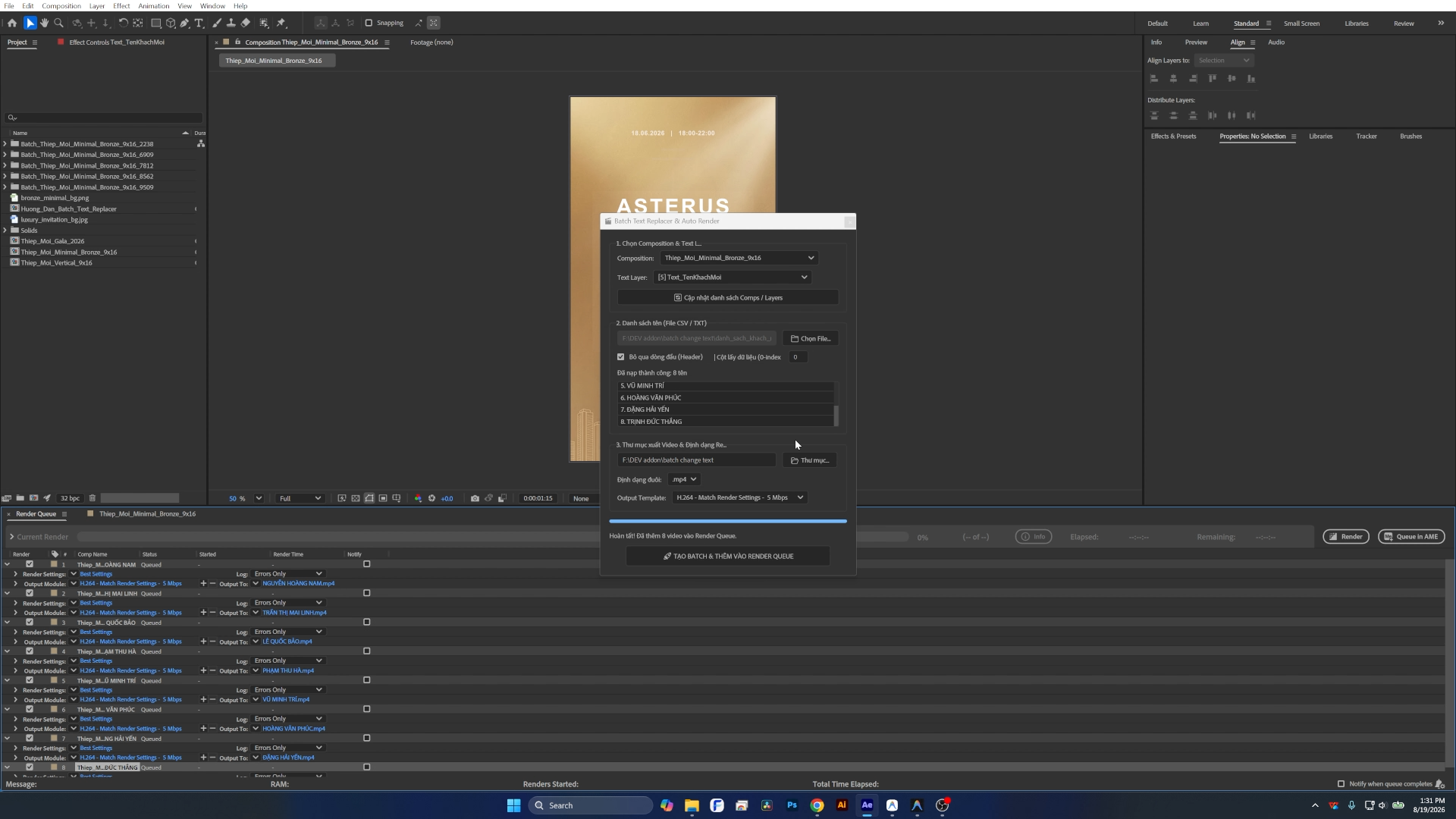
Tự động thay Text và Render hàng loạt trong After Effects
Khi làm các dự án video cần cá nhân hóa như thiệp mời sự kiện, video vinh danh, chứng chỉ trao giải hoặc intro cho hàng chục đến hàng trăm người, việc mở từng comp, gõ lại tên thủ công và thêm từng file vào Render Queue thường mất nhiều thời gian và dễ nhầm lẫn.
Bài viết này chia sẻ script Batch Text Replacer & Auto Render (.jsx) dành cho Adobe After Effects. Script tự động đọc danh sách tên từ file CSV hoặc TXT (hỗ trợ tiếng Việt có dấu UTF-8), nhân bản composition mẫu, thay đổi layer chữ và đưa toàn bộ danh sách vào Render Queue với định dạng MP4 (H.264) hoặc MOV.
1. Các tính năng chính của Script
- Tự động nhận diện Composition & Text Layer: Quét toàn bộ layer chữ trong comp đang chọn mà không cần tìm thủ công.
- Hỗ trợ tiếng Việt Unicode UTF-8: Đọc dữ liệu từ file CSV hoặc TXT, xử lý dấu tiếng Việt chính xác.
- Tùy chọn cột dữ liệu: Cho phép chọn cột bất kỳ trong file CSV (chỉ mục cột bắt đầu từ 0) và bỏ qua dòng tiêu đề.
- Tổ chức thư mục gọn gàng: Các composition nhân bản được gom tự động vào một thư mục riêng trong cửa sổ Project (
Batch_CompName_xxxx). - Cấu hình Render Queue tự động: Tự động áp dụng Output Module Template chuẩn (H.264 MP4 hoặc ProRes/Lossless MOV) và đặt tên file video theo từng người trong danh sách.
- Xử lý an toàn Keyframes & Expressions: Tự động tắt expression và gỡ keyframe cũ trên thuộc tính
Source Textđể đảm bảo nội dung mới hiển thị cố định suốt thời lượng comp.
2. Hướng dẫn cài đặt và sử dụng
Bước 1: Khởi chạy Script trong After Effects
Có 2 cách để mở script:
- Cách dùng nhanh: Mở After Effects, vào menu
File➔Scripts➔Run Script File...và chọn filebatch_text_replacer_and_render.jsx. - Cài đặt cố định vào menu Window: Copy file
batch_text_replacer_and_render.jsxvào thư mục:- Windows:
C:\Program Files\Adobe\Adobe After Effects <Version>\Support Files\Scripts\ScriptUI Panels\ - Sau khi copy, khởi động lại After Effects và mở script từ menu
Windowđể gắn panel vào không gian làm việc.
- Windows:
Bước 2: Chọn Composition và Text Layer
- Tại phần 1. Chọn Composition & Text Layer, chọn composition mẫu bạn muốn nhân bản.
- Chọn layer chữ cần thay đổi nội dung từ danh sách dropdown.
Bước 3: Nạp danh sách tên từ CSV hoặc TXT
- Bấm
📁 Chọn File...và trỏ đến file danh sách tên của bạn. - Nếu file CSV có dòng tiêu đề (Header), tích chọn Bỏ qua dòng đầu (Header).
- Nếu tên nằm ở cột thứ 2 trong file CSV, nhập số
1vào ô Cột lấy dữ liệu (0-index). Danh sách xem trước sẽ hiển thị ngay bên dưới.
Bước 4: Chọn thư mục xuất video và định dạng
- Nhập hoặc bấm
📂 Thư mục...để chọn nơi lưu video xuất ra. - Chọn định dạng đuôi
.mp4hoặc.mov. Script sẽ tự động gán Output Module Template tương ứng trong Render Queue.
Bước 5: Bắt đầu tạo Batch
Bấm nút 🚀 TẠO BATCH & THÊM VÀO RENDER QUEUE. Script sẽ tự động:
- Nhân bản từng composition tương ứng với từng dòng trong file CSV.
- Thay thế nội dung chữ trên layer đã chọn.
- Đặt tên file xuất theo tên khách và thêm vào Render Queue.
- Sau khi hoàn tất, bạn chỉ cần bấm
Rendertrong After Effects để xuất video.
3. Lưu ý kỹ thuật khi chuẩn bị file
- Định dạng file CSV: Khi xuất file từ Excel hoặc Google Sheets, hãy chọn định dạng CSV UTF-8 (Comma delimited) để tránh lỗi font tiếng Việt.
- Ký tự đặc biệt trong tên file: Script tự động lọc bỏ các ký tự không hợp lệ trong tên file của hệ điều hành (
\,/,:,*,?,",<,>,|) để đảm bảo quá trình render không bị ngắt quãng.
Nếu bạn có câu hỏi hoặc cần tùy biến thêm tính năng cho quy trình làm việc của mình, hãy để lại bình luận ở bên dưới.
Automated Batch Text Replacer & Render Script for After Effects
When working on video projects requiring high personalization—such as event invitations, employee recognition reels, graduation certificates, or customized intro cards for dozens or hundreds of recipients—manually editing text layers and adding each composition to the Render Queue is repetitive and time-consuming.
This post shares the Batch Text Replacer & Auto Render ExtendScript (.jsx) for Adobe After Effects. It reads guest or name lists from a CSV or TXT file (with full UTF-8 Unicode support), duplicates the master composition, updates the target text layer, and queues all outputs as MP4 (H.264) or MOV files.
1. Key Features
- Automatic Composition & Text Layer Detection: Scans and lists all editable text layers in the selected composition without manual layer ID lookup.
- UTF-8 Unicode Support: Seamlessly handles international accents and Vietnamese characters from CSV/TXT data files.
- Custom Column Indexing: Allows selecting any column index (0-indexed) with an option to skip header rows.
- Organized Project Structure: Duplicated compositions are grouped into dedicated project folders (
Batch_CompName_xxxx). - Automated Render Queue Configuration: Applies H.264 (MP4) or ProRes/Lossless (MOV) output module templates and sets clean, sanitized file names.
- Safe Keyframe & Expression Handling: Disables active expressions and removes old keyframes on
Source Textto guarantee consistent text display throughout the duration.
2. Step-by-Step Guide
Step 1: Launch the Script in After Effects
You can run the script in two ways:
- Direct Run: In After Effects, navigate to
File➔Scripts➔Run Script File...and selectbatch_text_replacer_and_render.jsx. - Dockable Panel Installation: Place
batch_text_replacer_and_render.jsxinside:- Windows:
C:\Program Files\Adobe\Adobe After Effects <Version>\Support Files\Scripts\ScriptUI Panels\ - Restart After Effects, then access it from the
Windowmenu to dock it alongside your standard workspace panels.
- Windows:
Step 2: Select Composition and Text Layer
- In section 1. Choose Composition & Text Layer, select your template composition.
- Pick the text layer you wish to customize from the dropdown.
Step 3: Load CSV or TXT Data
- Click
📁 Browse File...and select your data file. - Check Skip First Line (Header) if your CSV includes column titles.
- Set the column index in Column Index (0-index). A live preview of the parsed entries will appear in the box below.
Step 4: Choose Output Folder & Format
- Enter or browse for the export directory.
- Select
.mp4or.mov. The script automatically maps matching Output Module templates.
Step 5: Execute Batch Duplication
Click 🚀 CREATE BATCH & ADD TO RENDER QUEUE. The script will:
- Duplicate the composition for every name in the dataset.
- Update the target text layer with exact character encoding.
- Add all items to the Render Queue with sanitized filenames.
- Click
Renderinside After Effects to export the entire batch.
3. Best Practices
- CSV Encoding: When exporting from Excel or Google Sheets, ensure the file is saved as CSV UTF-8 (Comma delimited).
- Filename Sanitization: The script automatically removes invalid file path characters (
\,/,:,*,?,",<,>,|) to prevent rendering errors.
Feel free to leave a comment below if you have any questions or workflow customization requests.